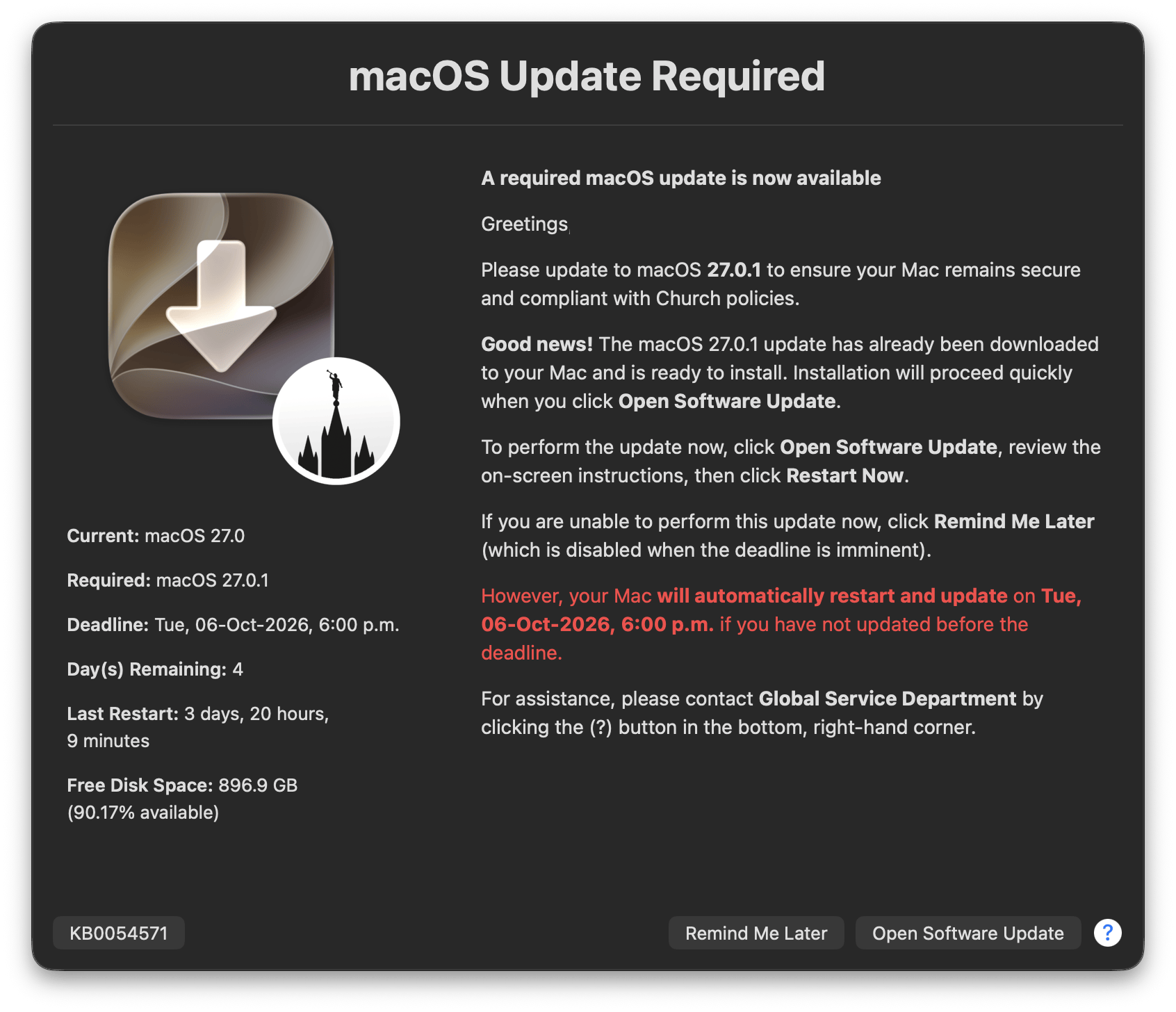
Another welcome tune-up to Mac Admins’ favorite “set-it-and-forget-it” macOS update reminder, featuring a low-battery warning, plain-language client-side logs (with clear next steps), and re-assembly from hand-edited Configuration Profiles
Overview
While Apple’s Declarative Device Management (DDM) provides Mac Admins with a powerful way to enforce macOS updates, its built-in notification is often too subtle for most administrators:
DDM OS Reminder intelligently resolves DDM-enforced macOS update deadlines from recent /var/log/install.log activity, while using a declaration-aware resolver which prioritizes applicable enforced-install signals. Normal DDM resolution always runs first, and a confirmed declaration wins; when the root-owned SoftwareUpdateDDMStatePersistence.plist is readable, install.log declarations must also match an active declaration persisted by softwareupdated. When resolution returns missing, conflict, noMatch, or invalidVersion, an optional, validated DDM Emergency Fallback requirement can keep reminder workflows active; absent or invalid fallback data preserves fail-safe suppression, and unknown resolver states always fail closed. Failed stale SoftwareUpdateSubscriber attempts are ignored, and enforcement timestamps with full timezone offsets such as +05:30 are accepted before using a swiftDialog-enabled script and LaunchDaemon to deliver a more prominent end-user reminder dialog.
🆕 5.2.0 Highlights
Low-battery warning: When a Mac is running on its internal battery below MinimumBatteryPercentage (0–100; default 50; 0 disables), the dialog adds BatteryWarningMessage (localized for en, de, fr, es, pt, ja, nl, and it) through the new {batteryWarningMessage} placeholder, asking the user to plug in until the update completes. Desktops, Macs on AC or UPS power, and unreadable battery states never show it. It is messaging only, never gates Prompt / Force restarts, and also appears in the restart dialogs because a restart does not charge the battery. (Issue #157; thanks, ebbg!)
Plain-language client-side logs: DDM update check: <outcome> (status=…; source=…; reason=…) replaces Normal DDM resolver result: …, and every run that shows no reminder ends with No reminder shown: … and Next step: …. The status=, source=, and reason= tokens, reminder timing, and suppression decisions are unchanged. (Issue #154)
Re-assemble from hand-edited Configuration Profiles: assemble.zsh now accepts a prior .mobileconfig (unsigned or signed) as well as a prior .plist, so the generated .plist no longer drifts from a profile edited by hand. (See 3. Upgrading; Issue #153; thanks, @anewhouse!)
Accurate final-minute countdown: {minutesBeforeDeadline} in PreDeadlineThresholdMessage now shows the minutes actually remaining instead of the crossed threshold, so late runs (padded deadline, heartbeat delay, wake from sleep, or manual run) no longer overstate time left. (Issue #160)
Roomier low-disk-space default: The MinimumDiskFreeGB sample default rises from 26 to 35 after a fully staged macOS update was observed at 26.60 GB. Existing deployed values are unchanged.
Diagnosis across versions: Resources/diagnoseReminderState.zsh (1.4.0) reads both new and pre-5.2.0 log lines, recognizes the new battery preferences, and shows each run’s No reminder shown: or [QUIT] reason. (See 4.4 AI Diagnose Skill.)
Extension Attribute fixes: JamfEA-DDM-OS-Reminder-User-Clicks.zsh now reports only [NOTICE] button-click lines, JamfEA-Volume_Owners.zsh reports only actual Volume Owners, and the bundled Extension Attributes now consistently run with --no-rcs.
Scheduler state survives redeployment: All and Script redeployments now keep /Library/Management/<rdnn>/dor-state.plist, so already-delivered pre-deadline threshold reminders and same-day Update Tonight suppression are not repeated. Only NextScheduledReminder is cleared, so the refreshed heartbeat still evaluates reminders right after deployment; Script now also unloads the heartbeat before replacing dor.zsh, and only Uninstall removes the file. (Issue #149)
Fixed-GB low-disk-space warning: New MinimumDiskFreeGB (sample default 26, raised to 35 in 5.2.0; 0 disables) replaces percentage-based MinimumDiskFreePercentage, so large disks no longer warn with hundreds of GB free and small disks no longer under-warn. MinimumDiskFreePercentage is deprecated, still honored when MinimumDiskFreeGB is unset, and will be removed in 6.0.0. (Issue #146; idea credit: @zte303, DDM-Notify-Basic)
Red infobox Deadline: The infobox Deadline now renders in red whenever Day(s) Remaining does, including the final ~12 hours when Day(s) Remaining rounds to 0; square brackets in a custom DateFormatDeadlineHumanReadable no longer break swiftDialog’s color markup. (Issue #143)
AI Diagnose Skill: A read-only Resources/diagnoseReminderState.zsh helper and companion agent skill turn an uploaded client-side log, /var/log/install.log, and client-side .plist into a redacted, evidence-based explanation of why a reminder did (or did not) appear. (See 4.4 AI Diagnose Skill; Issue #147)
Safer prior-plist import: assemble.zsh now skips imported numeric values outside 0–999 (keeping the sample default), matching the runtime, and names the MinimumDiskFreeGB replacement when a prior .plist carries MinimumDiskFreePercentage.
Corroborated DDM declarations: When the root-owned /var/db/softwareupdate/SoftwareUpdateDDMStatePersistence.plist is readable, install.log declaration candidates must match an active softwareupdated declaration (TargetOSVersion + TargetLocalDateTime); unmatched candidates are ignored and logged at [WARNING]. Runtime and both Pending OS Update Extension Attributes share this rule; a missing or unrecognized plist keeps install.log-only behavior and logs a [WARNING] (see SECURITY.md).
Update Tonight awareness: Confirmed same-day Update Tonight scheduling for the target version pauses normal reminders until local midnight. Evidence must be logged by softwareupdated; pre-deadline thresholds, aggressive mode, and Force mode still apply. (Issue #133)
Private runtime files and atomic deployment: Each run keeps downloaded icons, the swiftDialog command file, and threshold markers in its own mktemp -d directory under /var/tmp, removed on exit. dor.zsh and dor-starter.zsh are syntax-checked before atomic replacement, so the heartbeat never launches a partially written script.
App-bundle swiftDialog: swiftDialog runs from /Library/Application Support/Dialog/Dialog.app/Contents/MacOS/dialogcli, and /usr/local is no longer in the root PATH.
Safer user-session actions: Info button URLs and System Settings activation open in the console user’s session through launchctl asuser, the System Settings wait is capped at 30 seconds, and Setup Assistant (_mbsetupuser) is never targeted.
Support kill switch persists: All and Script redeployments keep /Library/Management/<rdnn>/dor-aggressive-kill; only Uninstall removes it.
Resilient preference parsing: Mixed valid and invalid DailyReminderTimes or MinutesBeforeDeadlineReminderSchedule entries keep the valid values and log each skipped entry; unrecognized language codes fall back to English. (Issue #139; thanks, @TechTrekkie!)
Hardened tooling: assemble.zsh rejects unsafe imported ScriptLog paths and re-prompts on an invalid deployment mode, self-extracting wrappers forward MDM Parameters 4–6, and Resources/Jamf-getDDMstatusFromCSV.zsh keeps API credentials out of process arguments.
Includes 4.2.1 and 4.2.2 fixes: HideSupportAssistanceMessagealone controls the support assistance text while InfoButtonText=hide now hides only the info button (if you relied on InfoButtonText=hide to also hide the support assistance text, set HideSupportAssistanceMessage to true), and recovered DDM declarations no longer remain stuck in conflict.
Customizable: Easily customize the reminder dialog’s title, message, icons and button text to fit your organization’s requirements by distributing a Configuration Profile via any MDM solution.
Easy Installation: The assemble.zsh script makes it easy to deploy your reminder dialog and display frequency customizations via any MDM solution, enabling quick rollout of DDM OS Reminder organization-wide.
Set-it-and-forget-it: Once configured and installed, a heartbeat LaunchDaemon plus lightweight dor-starter.zsh honors your configured DailyReminderTimes baseline schedule and displays your customized reminder dialog only when a reminder is actually due.
Deadline Awareness: Whenever a DDM-enforced macOS version or its deadline is updated via your MDM solution, the reminder dialog dynamically updates the countdown to both the deadline and required macOS version to drive timely compliance.
DDM Emergency Fallback: Jamf Pro Script Parameters 5 and 6 can persist an emergency version/deadline requirement at /Library/Management/<rdnn>/dor-fallback-declaration.plist. Runtime can select it after recognized unresolved DDM states; confirmed DDM always wins.
Update Tonight awareness: When a user schedules the required macOS update with Update Tonight and install.log confirms that softwareupdated queued the target version and armed the overnight scheduler, normal reminders pause until local midnight. Pre-deadline thresholds, aggressive mode, and Force mode still apply, and suppression never applies on deadline day.
Intelligently Intrusive: The reminder dialog is designed to be informative without being disruptive. Before displaying, it checks for active display-sleep assertions from an allowlist of approved meeting apps, helping users stay productive while still being reminded to update. A fixed MinimumDiskFreeGB threshold (sample default 35) warns users only when free space is genuinely too low for the update, and 🆕 a MinimumBatteryPercentage threshold (default 50) asks laptop users running on battery to connect power.
Logging: The script logs its actions to your specified log file, allowing Mac Admins to monitor its activity and troubleshoot as necessary. 🆕 Whenever no reminder appears, the log says why (No reminder shown: …) and what to do (Next step: …).
AI-assisted Diagnosis: Upload the client-side log, /var/log/install.log, and client-side .plist from an affected Mac and let the diagnose-client-state agent skill explain — with quoted, redacted evidence — why a reminder did not appear (or appeared unexpectedly). (See 4.4 AI Diagnose Skill.)
Demonstration Mode: A built-in demo mode allows Mac Admins to test the appearance and functionality of the reminder dialog with ease.
Configurable Post-Deadline Restart Policy: Choose whether past-deadline devices are left alone, prompted to restart, or forced to restart (Off, Prompt, Force) after your defined grace period, balancing user flexibility with reliable compliance.
Upgrade-friendly: assemble.zsh can now import supported settings from a previously generated DDM OS Reminder .plist or 🆕 .mobileconfig (unsigned or signed), infer the RDNN and deployment lane (dev, test, prod), and generate a matched assembled script, organizational .plist, and unsigned .mobileconfig in a single pass. (See 3. Upgrading.)
Full Multi-language Experience: Beginning with version 3.1.0, English dialog defaults are provided in-script, with .plist support for: German, French, Spanish, Italian, Dutch, Portuguese, and Japanese. Additional languages are supported through *Localized_<code> preference keys, with locale-aware dialog content, support messaging, human-readable deadline dates, and past-deadline restart copy that match the resolved language.
Granular Control for Displaying IT Support Information: New HideSupport* preferences allow Mac Admins to easily choose which IT Support fields are displayed to their end-users.
UsereminderDialogPreferenceTest.zsh when you want to easily validate dialog copy, localization, branding, support contact details, button visibility, and infobox rendering from deployed preferences without waiting for an actual DDM deadline; 🆕 add --battery-percentage <0-100> to preview the low-battery warning on a desktop or AC-powered Mac.
Lean Artifact Options: Keep the full localization surface, generate a minimal artifact (--minimal = base keys + exact _Localized_en keys only), or retain only selected language families with --languages <csv>. In assemble.zsh --interactive, same choice appears as Full, Minimal, or Selected languages.
Implementation
1. Local Testing
Jumpstart your DDM OS Reminder implementation by first conducting a local test on a non-production Mac which has swiftDialog installed.
Ideally, use a non-production Mac which is already in-scope of a pending Declarative Device Management-enforced macOS update from your MDM server.
Re-executezsh reminderDialog.zsh demo and confirm you now observe the word “Sample” in various places in the reminder dialog, as configured in sample.plist:
2. MDM Deployment
The included assemble.zsh script makes MDM deployment easy by generating organization-specific deployment artifacts
Generate customized deployment artifacts for your organization by using the assemble.zshscript, specifying your organization’s Reverse Domain Name Notation (i.e., us.snelson) with --interactive mode (--lane prod skips the deployment-mode prompt):
❯ zsh assemble.zsh us.snelson --lane prod --interactive

=====================================================================================
🧩 Assemble DDM OS Reminder (5.2.0)
=====================================================================================

📍 Full Paths:

        Reminder Dialog: ~/DDM-OS-Reminder/reminderDialog.zsh
LaunchDaemon Management: ~/DDM-OS-Reminder/launchDaemonManagement.zsh
      Working Directory: ~/DDM-OS-Reminder
    Resources Directory: ~/DDM-OS-Reminder/Resources

🔍 Checking Reverse Domain Name Notation …

    Reminder Dialog (reminderDialog.zsh):
        reverseDomainNameNotation = org.churchofjesuschrist
        organizationScriptName    = dorm

    LaunchDaemon Management (launchDaemonManagement.zsh):
        reverseDomainNameNotation = org.churchofjesuschrist
        organizationScriptName    = dor


📥 RDNN provided via command-line argument: 'us.snelson'

━━━━━━━━━━━━━━━━━━━━━━━━━━━━━━━━━━━━━━━━━━━━━━━━━━━━━━━━━━━━━━━━━━━━━━━━━━━━━━━━━━━━━
🛠️  Interactive Configuration
━━━━━━━━━━━━━━━━━━━━━━━━━━━━━━━━━━━━━━━━━━━━━━━━━━━━━━━━━━━━━━━━━━━━━━━━━━━━━━━━━━━━━

Drag-and-drop an earlier DOR .plist or .mobileconfig to import [Return to skip] (or ‘X’ to exit):

━━━━━━━━━━━━━━━━━━━━━━━━━━━━━━━━━━━━━━━━━━━━━━━━━━━━━━━━━━━━━━━━━━━━━━━━━━━━━━━━━━━━━
🏷️  Using 'us.snelson' as the Reverse Domain Name Notation
━━━━━━━━━━━━━━━━━━━━━━━━━━━━━━━━━━━━━━━━━━━━━━━━━━━━━━━━━━━━━━━━━━━━━━━━━━━━━━━━━━━━━

━━━━━━━━━━━━━━━━━━━━━━━━━━━━━━━━━━━━━━━━━━━━━━━━━━━━━━━━━━━━━━━━━━━━━━━━━━━━━━━━━━━━━
🎛️  IT Support, Branding, Restart & Aggressive Mode Policy (Interactive)
━━━━━━━━━━━━━━━━━━━━━━━━━━━━━━━━━━━━━━━━━━━━━━━━━━━━━━━━━━━━━━━━━━━━━━━━━━━━━━━━━━━━━

Support Team Name [IT Support] (or ‘X’ to exit):
Support Team Phone [+1 (801) 555-1212] (or ‘X’ to exit): +1 (937) 681-1122
Hide Support Team Phone (YES/NO) [NO] (or ‘X’ to exit):
Support Team Email [rescue@snelson.us] (or ‘X’ to exit):
Hide Support Team Email (YES/NO) [NO] (or ‘X’ to exit):
Support Team Website [https://support.snelson.us] (or ‘X’ to exit):
Hide Support Team Website (YES/NO) [NO] (or ‘X’ to exit):
Info Button ('YES' to specify; 'NO' to hide) [YES] (or ‘X’ to exit):
Info Button Text [Update macOS on Mac] (or ‘X’ to exit): KB8675309
Info Button Action [https://support.snelson.us] (or ‘X’ to exit): https://support.snelson.us/KB8675309
Knowledge Base Row ('YES' to specify; 'NO' to hide) [YES] (or ‘X’ to exit):
Support KB Title [Update macOS on Mac] (or ‘X’ to exit): KB8675309
Support KB Markdown Link [[KB8675309](https://support.snelson.us/KB8675309)] (or ‘X’ to exit):
Hide Support Assistance Message (YES/NO) [NO] (or ‘X’ to exit):
Overlay Icon URL (Light) [https://usw2.ics.services.jamfcloud.com/icon/hash_2d64ce7f0042ad68234a2515211adb067ad6714703dd8ebd6f33c1ab30354b1d] (or ‘X’ to exit):
Overlay Icon URL (Dark) [https://use2.ics.services.jamfcloud.com/icon/hash_d3a3bc5e06d2db5f9697f9b4fa095bfecb2dc0d22c71aadea525eb38ff981d39] (or ‘X’ to exit):
Swap Overlay and Logo (YES/NO) [NO] (or ‘X’ to exit):
Past-deadline Restart Behavior (Off / [P]rompt / [F]orce) [Off] (or ‘X’ to exit): Prompt
Days Past Deadline Before Restart Workflow (0-999) [2] (or ‘X’ to exit): 3
Aggressive Mode Past Deadline Hours (0-999; use 720 to effectively suppress) [2] (or ‘X’ to exit):
Aggressive Mode Frequency Minutes (1-999) [20] (or ‘X’ to exit):

━━━━━━━━━━━━━━━━━━━━━━━━━━━━━━━━━━━━━━━━━━━━━━━━━━━━━━━━━━━━━━━━━━━━━━━━━━━━━━━━━━━━━
🌐 Localization Artifact Mode
━━━━━━━━━━━━━━━━━━━━━━━━━━━━━━━━━━━━━━━━━━━━━━━━━━━━━━━━━━━━━━━━━━━━━━━━━━━━━━━━━━━━━

Localization Output (Full / [M]inimal / [S]elected languages) [Full] (or ‘X’ to exit):

ℹ️  Localization mode set to: full localization surface

🌐 Artifact Localization: full localization surface


━━━━━━━━━━━━━━━━━━━━━━━━━━━━━━━━━━━━━━━━━━━━━━━━━━━━━━━━━━━━━━━━━━━━━━━━━━━━━━━━━━━━━
📦 Deployment Mode: prod
━━━━━━━━━━━━━━━━━━━━━━━━━━━━━━━━━━━━━━━━━━━━━━━━━━━━━━━━━━━━━━━━━━━━━━━━━━━━━━━━━━━━━

🔧 Inserting reminderDialog.zsh into launchDaemonManagement.zsh  …

✅ Assembly complete [2026-10-20-111958]
   → Artifacts/ddm-os-reminder-assembled-2026-10-20-111958.zsh

🔁 Updating reverseDomainNameNotation to 'us.snelson' in assembled script …

🔍 Performing syntax check on 'Artifacts/ddm-os-reminder-assembled-2026-10-20-111958.zsh' …
    ✅ Syntax check passed.

🗂  Generating LaunchDaemon plist …
    🗂  Creating us.snelson.dorm plist from ~/DDM-OS-Reminder/Resources/sample.plist …

    🔧 Updating internal plist content …
    🔓 Production mode: removing placeholder text for clean deployment
    🔧 Applying IT support, branding, restart and aggressive mode values …
   → Artifacts/us.snelson.dorm-2026-10-20-111958-prod.plist

🧩 Generating Configuration Profile (.mobileconfig) …
   → Artifacts/us.snelson.dorm-2026-10-20-111958-prod-unsigned.mobileconfig

🔍 Performing syntax check on 'Artifacts/us.snelson.dorm-2026-10-20-111958-prod-unsigned.mobileconfig' …
    ✅ Profile syntax check passed.

🔁 Renaming assembled script …

🔁 Updating scriptLog path based on RDNN …

🏁 Done.

📦 Deployment Artifacts:
         Assembled Script: Artifacts/ddm-os-reminder-us.snelson-2026-10-20-111958-prod.zsh
     Organizational Plist: Artifacts/us.snelson.dorm-2026-10-20-111958-prod.plist
    Configuration Profile: Artifacts/us.snelson.dorm-2026-10-20-111958-prod-unsigned.mobileconfig

━━━━━━━━━━━━━━━━━━━━━━━━━━━━━━━━━━━━━━━━━━━━━━━━━━━━━━━━━━━━━━━━━━━━━━━━━━━━━━━━━━━━━
⚠️  Important Next Steps:
━━━━━━━━━━━━━━━━━━━━━━━━━━━━━━━━━━━━━━━━━━━━━━━━━━━━━━━━━━━━━━━━━━━━━━━━━━━━━━━━━━━━━

  Production Artifacts Generated:
    - All placeholder text removed (clean output)
    - Localization artifact mode: full localization surface
    - IT support, branding, restart and aggressive mode values applied from prompts
    - Past-deadline restart policy set to 'Prompt'
    - Aggressive mode begins 2 hour(s) past deadline and repeats every 20 minute(s)
    - Restart workflow begins 3 day(s) past deadline

  Recommended review items:
    - Support team name, phone, email, website
    - DailyReminderTimes baseline schedule
    - AggressiveModePastDeadlineHours and AggressiveModeFrequencyMinutes
    - Localization key set matches intended artifact mode
    - Support KB title/link and Info button URL
    - Organization overlay icon URLs
    - Button labels and dialog messages

  Files to review:
    - Artifacts/us.snelson.dorm-2026-10-20-111958-prod.plist
    - Artifacts/us.snelson.dorm-2026-10-20-111958-prod-unsigned.mobileconfig

=====================================================================================
Carefullyreview deployment artifacts and distribute the appropriate files to a single test Mac via your MDM:
Either the .mobileconfigor the .plist (as a Configuration Profile)
The assembled .zsh script (install only once)
After the assembled script and configuration profile have installed on the test Mac, use Resources/monitorRemoteSession.zsh during a remote Terminal session when you need one view of the heartbeat daemon, deployed runtime files, dor-state.plist, dor.pid, matching processes, aggressive-mode kill switch, and recent log entries. Use --watch 5 while testing or immediately after a kickstart:
In a second, elevated Terminal window, kickstart the DDM OS Reminder heartbeat LaunchDaemon when you want to force an immediate starter evaluation. Since version 4.0.0, kickstart may exit quietly if NextScheduledReminder is FALSE or future-dated (beginning with 5.0.0, Update Tonight suppression future-dates it to the first post-midnight slot and records UpdateTonightSuppressionUntil in dor-state.plist; beginning with 5.1.0, All and Script redeployments keep dor-state.plist but clear NextScheduledReminder, so the first post-deployment heartbeat still evaluates reminders); check monitorRemoteSession.zsh before treating a missing dialog as a failure:
rdnn="us.snelson"

launchctl kickstart -kp system/"${rdnn}".dor
UseResources/reminderDialogPreferenceTest.zshwhen you want to validate dialog copy, localization, branding, support contact details, button visibility, and infobox rendering from deployed preferences. Use monitorRemoteSession.zsh for runtime heartbeat, scheduler, PID, process, kill-switch, and log troubleshooting:
Review the following before rolling out version 5.2.0.
MinimumDiskFreeGB sample default raised from 26 to 35: A fully staged macOS update has been observed at 26.60 GB, so 26 no longer leaves room to install. Existing deployed plists and Configuration Profiles keep their current value, and assemble.zsh keeps an imported MinimumDiskFreeGB; raise it manually if yours is still 26. The script default (999) and 0 (disabled) are unchanged.
New low-battery warning: When a Mac is running on its internal battery below MinimumBatteryPercentage (0–100; script and sample default 50; 0 disables), the dialog adds BatteryWarningMessage through the new {batteryWarningMessage} placeholder, asking the user to plug in. Desktops, Macs on AC or UPS power, and Macs whose battery charge can’t be read never show it. It is messaging only: PastDeadlineRestartBehaviorPrompt / Force eligibility and timing are unchanged, and the warning also appears in the restart dialogs because a restart does not charge the battery.
Deploy the updated dor.zsh before, or together with, any Configuration Profile which contains {batteryWarningMessage}. Older scripts replace only the placeholders they know, so the dialog would show the literal text {batteryWarningMessage}.
Customized templates need the placeholder added by hand. Add {batteryWarningMessage} to customized Message, AggressiveModeMessage, and PreDeadlineThresholdMessage (after {diskSpaceWarningMessage}, before {supportAssistanceMessage}), and to PastDeadlinePromptMessage and PastDeadlineForceMessage (at the end), plus their Localized_<code> variants. Without it, the warning never appears. When assemble.zsh imports a prior .plist / .mobileconfig, it prints an ℹ️ line listing each imported template which lacks the placeholder (production builds repeat the list under Recommended review items); it never rewrites admin-authored copy.
Non-English battery strings are new and would benefit from native-speaker review.
Client-side log lines changed: Scripts, Extension Attributes, or log searches keyed on Normal DDM resolver result, Resolver suppression summary, MDM fallback requirement, Version Comparison Result: No DDM enforcement log entry found, Installed macOS Version, Resolved DDM declaration, or Software Update handoff must be updated; key on DDM update check:, status=, No reminder shown:, Currently installed macOS, Opening Software Update, and DDM Emergency Fallback instead. Log line format is unchanged. (The bundled Jamf Pro Extension Attributes are not affected.)
5.1.0 Upgrade Notes
Review the following before rolling out version 5.1.0.
Scheduler state survives redeployment: All and Script keep /Library/Management/<rdnn>/dor-state.plist, so already-delivered pre-deadline threshold reminders and same-day Update Tonight suppression are not repeated after a redeploy. Only NextScheduledReminder is cleared, so the refreshed heartbeat still runs promptly; only Uninstall removes the file (matching the dor-aggressive-kill support kill switch).
Low-disk-space warning now uses a fixed GB threshold: MinimumDiskFreeGB (sample default 26, raised to 35 in 5.2.0; 0 disables) replaces MinimumDiskFreePercentage. The warning appears when available space (the same Finder-aligned value shown in the infobox) is below that many GB, regardless of disk size.
MinimumDiskFreePercentage is deprecated: When MinimumDiskFreeGB is not set, an existing MinimumDiskFreePercentage value is still honored and logged at [WARNING]; when both are set, MinimumDiskFreeGB wins. Support for MinimumDiskFreePercentage will be removed in 6.0.0. Re-run assemble.zsh with your prior .plist to generate configuration with MinimumDiskFreeGB; the import reports the replacement (for example, Replaced deprecated MinimumDiskFreePercentage (10%) with MinimumDiskFreeGB (35 GB, sample default)) and, in production builds, lists MinimumDiskFreeGB under Recommended review items.
5.0.0 Upgrade Notes
Review the following before rolling out version 5.0.0; no preference keys, defaults, or precedence rules changed.
Self-extracting wrapper now forwards MDM script parameters: Wrappers generated by Resources/createSelfExtracting.zsh (2.4.0) pass Parameters 4–6 to the deployer. Values previously ignored on wrapper-based policies (reset mode, Uninstall, DDM Emergency Fallback) now take effect, so audit those policy parameters before rollout.
swiftDialog path: The runtime and deployer invoke /Library/Application Support/Dialog/Dialog.app/Contents/MacOS/dialogcli; the runtime, deployer, dor-starter.zsh, and LaunchDaemon no longer include /usr/local or /usr/local/bin in PATH.
Aggressive-mode kill switch survives redeployment: All and Script keep /Library/Management/<rdnn>/dor-aggressive-kill; only Uninstall removes it.
Support assistance text (from 4.2.1): InfoButtonText=hide no longer hides {supportAssistanceMessage}; set HideSupportAssistanceMessage=true if you relied on the old behavior. Version 5.0.0 is the first stable release with this change.
2.2.0 (and later)
Version 3.0.0 (and later) of assemble.zsh can import supported settings from a previously generated DDM OS Reminder .plist (or, 🆕 starting with 5.2.0, a hand-edited .mobileconfig), infer the RDNN and deployment lane (dev, test, prod), and generate a matched assembled script, organizational .plist, and unsigned .mobileconfig in a single pass.
Prior .mobileconfig import supports unsigned and CMS-signed profiles. The profile must contain exactly one DDM OS Reminder (*.dorm) preferences payload; Forced settings are preferred, and missing, multiple, or ambiguous payloads fail with a clear ❌ message. A ⚠️ warning flags a profile whose *.dorm domain disagrees with the RDNN in ScriptLog. Supply only one prior .plist or .mobileconfig.
zsh assemble.zsh drag-and-drop-prior.plist

zsh assemble.zsh drag-and-drop-prior.mobileconfig
zsh assemble.zsh '/Users/dan/Downloads/DDM-OS-Reminder-5.1.0/Artifacts/us.snelson.dorm-2026-10-13-073608.plist'

=====================================================================================
🧩 Assemble DDM OS Reminder (5.2.0)
=====================================================================================

📍 Full Paths:

        Reminder Dialog: ~/Downloads/DDM-OS-Reminder-main/reminderDialog.zsh
LaunchDaemon Management: ~/Downloads/DDM-OS-Reminder-main/launchDaemonManagement.zsh
      Working Directory: ~/Downloads/DDM-OS-Reminder-main
    Resources Directory: ~/Downloads/DDM-OS-Reminder-main/Resources

🔍 Checking Reverse Domain Name Notation …

    Reminder Dialog (reminderDialog.zsh):
        reverseDomainNameNotation = org.churchofjesuschrist
        organizationScriptName    = dorm

    LaunchDaemon Management (launchDaemonManagement.zsh):
        reverseDomainNameNotation = org.churchofjesuschrist
        organizationScriptName    = dor


⚠️  Prior plist is missing version metadata; continuing with documented 2.2.0+ compatibility on a best-effort basis
📥 Prior plist provided via command-line argument: '/Users/dan/Downloads/DDM-OS-Reminder-5.1.0/Artifacts/us.snelson.dorm-2026-10-13-073608.plist'

ℹ️  Importing supported values from: /Users/dan/Downloads/DDM-OS-Reminder-5.1.0/Artifacts/us.snelson.dorm-2026-10-13-073608.plist
🔎 Inferred RDNN from prior plist: 'us.snelson'

━━━━━━━━━━━━━━━━━━━━━━━━━━━━━━━━━━━━━━━━━━━━━━━━━━━━━━━━━━━━━━━━━━━━━━━━━━━━━━━━━━━━━
🏷️  Using 'us.snelson' as the Reverse Domain Name Notation
━━━━━━━━━━━━━━━━━━━━━━━━━━━━━━━━━━━━━━━━━━━━━━━━━━━━━━━━━━━━━━━━━━━━━━━━━━━━━━━━━━━━━


ℹ️  Prior plist supplied; skipping IT support, branding and restart policy prompts.


━━━━━━━━━━━━━━━━━━━━━━━━━━━━━━━━━━━━━━━━━━━━━━━━━━━━━━━━━━━━━━━━━━━━━━━━━━━━━━━━━━━━━
🛠️  Interactive Configuration
━━━━━━━━━━━━━━━━━━━━━━━━━━━━━━━━━━━━━━━━━━━━━━━━━━━━━━━━━━━━━━━━━━━━━━━━━━━━━━━━━━━━━

━━━━━━━━━━━━━━━━━━━━━━━━━━━━━━━━━━━━━━━━━━━━━━━━━━━━━━━━━━━━━━━━━━━━━━━━━━━━━━━━━━━━━
🌐 Localization Artifact Mode
━━━━━━━━━━━━━━━━━━━━━━━━━━━━━━━━━━━━━━━━━━━━━━━━━━━━━━━━━━━━━━━━━━━━━━━━━━━━━━━━━━━━━

Localization Output (Full / [M]inimal / [S]elected languages) [Full] (or ‘X’ to exit): S
Languages CSV (for example: en,fr or fr_CA,ja) [en,fr] (or ‘X’ to exit): en,fr

ℹ️  Localization mode set to: language subset: en,fr

🌐 Artifact Localization: language subset: en,fr


━━━━━━━━━━━━━━━━━━━━━━━━━━━━━━━━━━━━━━━━━━━━━━━━━━━━━━━━━━━━━━━━━━━━━━━━━━━━━━━━━━━━━
🚦 Select Deployment Mode:
━━━━━━━━━━━━━━━━━━━━━━━━━━━━━━━━━━━━━━━━━━━━━━━━━━━━━━━━━━━━━━━━━━━━━━━━━━━━━━━━━━━━━

  1) 🧪 Development - Keep placeholder text for local testing
  2) 🔬 Testing     - Replace placeholder text with 'TEST' for staging
  3) 🚀 Production  - Remove placeholder text for clean deployment

  [Press ‘X’ to exit ❎]

Specify Deployment Mode [1/2/3]: 3

━━━━━━━━━━━━━━━━━━━━━━━━━━━━━━━━━━━━━━━━━━━━━━━━━━━━━━━━━━━━━━━━━━━━━━━━━━━━━━━━━━━━━
📦 Deployment Mode: prod
━━━━━━━━━━━━━━━━━━━━━━━━━━━━━━━━━━━━━━━━━━━━━━━━━━━━━━━━━━━━━━━━━━━━━━━━━━━━━━━━━━━━━

🔧 Inserting reminderDialog.zsh into launchDaemonManagement.zsh  …

✅ Assembly complete [2026-10-20-111012]
   → Artifacts/ddm-os-reminder-assembled-2026-10-20-111012.zsh

🔁 Updating reverseDomainNameNotation to 'us.snelson' in assembled script …

🔍 Performing syntax check on 'Artifacts/ddm-os-reminder-assembled-2026-10-20-111012.zsh' …
    ✅ Syntax check passed.

🗂  Generating LaunchDaemon plist …
    🗂  Creating us.snelson.dorm plist from /Users/dan/Downloads/DDM-OS-Reminder-main/Resources/sample.plist …

    🔧 Updating internal plist content …
    🔓 Production mode: removing placeholder text for clean deployment
    🔧 Importing supported values from prior plist …
    ℹ️  Skipping 211 imported localized key(s) outside selected artifact mode (for example: "AggressiveModeMessageLocalized_de", "AggressiveModeMessageLocalized_es", "AggressiveModeMessageLocalized_it", "AggressiveModeMessageLocalized_ja", "AggressiveModeMessageLocalized_nl")
    ℹ️  Preserving imported ScriptLog: /var/log/us.snelson.log
    ℹ️  Imported templates without {batteryWarningMessage}; the low-battery warning will not appear in them until you add it:
        Message (+2 localized), AggressiveModeMessage (+2 localized), PreDeadlineThresholdMessage (+2 localized), PastDeadlinePromptMessage (+2 localized), PastDeadlineForceMessage (+2 localized)
    🌐 Removed 217 localized key(s) from generated plist
   → Artifacts/us.snelson.dorm-2026-10-20-111012-prod.plist

🧩 Generating Configuration Profile (.mobileconfig) …
   → Artifacts/us.snelson.dorm-2026-10-20-111012-prod-unsigned.mobileconfig

🔍 Performing syntax check on 'Artifacts/us.snelson.dorm-2026-10-20-111012-prod-unsigned.mobileconfig' …
    ✅ Profile syntax check passed.

🔁 Renaming assembled script …

🔁 Updating scriptLog path based on RDNN …

🏁 Done.

📦 Deployment Artifacts:
         Assembled Script: Artifacts/ddm-os-reminder-us.snelson-2026-10-20-111012-prod.zsh
     Organizational Plist: Artifacts/us.snelson.dorm-2026-10-20-111012-prod.plist
    Configuration Profile: Artifacts/us.snelson.dorm-2026-10-20-111012-prod-unsigned.mobileconfig

━━━━━━━━━━━━━━━━━━━━━━━━━━━━━━━━━━━━━━━━━━━━━━━━━━━━━━━━━━━━━━━━━━━━━━━━━━━━━━━━━━━━━
⚠️  Important Next Steps:
━━━━━━━━━━━━━━━━━━━━━━━━━━━━━━━━━━━━━━━━━━━━━━━━━━━━━━━━━━━━━━━━━━━━━━━━━━━━━━━━━━━━━

  Production Artifacts Generated:
    - All placeholder text removed (clean output)
    - Localization artifact mode: language subset: en,fr
    - Supported configuration values imported from prior plist
    - Prior plist: /Users/dan/Downloads/DDM-OS-Reminder-5.1.0/Artifacts/us.snelson.dorm-2026-10-13-073608.plist
    - ScriptLog resolved to '/var/log/us.snelson.log'

  Recommended review items:
    - Support team name, phone, email, website
    - DailyReminderTimes baseline schedule
    - AggressiveModePastDeadlineHours and AggressiveModeFrequencyMinutes
    - Add {batteryWarningMessage} to imported templates: Message (+2 localized), AggressiveModeMessage (+2 localized), PreDeadlineThresholdMessage (+2 localized), PastDeadlinePromptMessage (+2 localized), PastDeadlineForceMessage (+2 localized)
    - Localization key set matches intended artifact mode
    - Imported ScriptLog path and any carried-forward KB/help visibility
    - Organization overlay icon URLs
    - Button labels and dialog messages

  Files to review:
    - Artifacts/us.snelson.dorm-2026-10-20-111012-prod.plist
    - Artifacts/us.snelson.dorm-2026-10-20-111012-prod-unsigned.mobileconfig

=====================================================================================
As always, carefullyreview each deployment artifact and distribute the appropriate files to a single test Mac via your MDM. (See Steps 2.2 through 2.4.)
2.1.0 (and earlier)
Author’s Highly Opinionated Thought: There are enough changes since version 2.1.0 (and earlier) that it’s best to just start-from-scratch — first uninstalling earlier versions — rather than attempting to upgrade to the latest version.
4. Resources
4.1 AI-generated Documentation
AI-generated documentation is available in the GitHub repository
Diagrams: Comprehensive, AI-generated visual diagrams to augment this documentation
Executive Overview: High-level lifecycle view for Mac Admins who need the big picture first
System Architecture: Complete ecosystem overview from development through runtime execution
The assemble.zsh script creates combined, deployable artifacts of your customized scripts
Create Self-extractingencodes the most recently assembled script for easier deployment with some MDMs; version 2.4.0 extracts into a private mktemp -d directory and forwards MDM Script Parameters 4–6 (real-world testing and feedback welcome)
Create .plistcreates.plist and .mobileconfig, based on your customizations to reminderDialog.zsh (real-world testing and feedback welcome)
Extension Attributes were created for and tested on Jamf Pro and can most likely be adapted for other MDMs
Diagnose client state (diagnoseReminderState.zsh) reads uploaded client files and prints a redacted fact sheet of effective settings, install.log declaration evidence, and the last run’s recorded resolver result; it writes nothing and pairs with the AI Diagnose Skill. 🆕 Version 1.4.0 reads both new and pre-5.2.0 log lines, lists the runtime Battery: and Disk space: lines, and shows each run’s No reminder shown: or [QUIT] reason
Beginning with version 5.1.0, the diagnose-client-state agent skill helps answer the most common support question — “Why didn’t my user see a reminder?” (or “Why did they see one?”) — from files uploaded from the affected Mac, without live access to that Mac.
The skill is read-only: it never writes preferences, scheduler state, LaunchDaemons, or logs on the affected Mac, and the only file it may create is the redacted findings report — and only after you confirm a path. (Issue #147)
Where it lives
The canonical instructions live at Resources/skills/diagnose-client-state/SKILL.md and pair with the read-only Resources/diagnoseReminderState.zsh fact-sheet helper. Symbolic links from .claude/skills, .agents/skills, and .github/skills let skill-aware coding agents (Claude Code, Codex and other AGENTS.md-compatible tools, and GitHub Copilot) discover it automatically when you open your local copy of the repository.
1. Collect files from the affected Mac
Gather the three required files — plus any optional files you have — using the following as an example, substituting your organization’s Reverse Domain Name Notation and your own admin account:
Required: client-side log (/var/log/<rdnn>.log), /var/log/install.log (a full copy is fine; analysis uses the last 4,000 lines), and whichever client-side preferences exist (/Library/Managed Preferences/<rdnn>.dorm.plist and/or /Library/Preferences/<rdnn>.dorm.plist)
Optional: dor-state.plist, dor-fallback-declaration.plist, SoftwareUpdateDDMStatePersistence.plist, /Library/LaunchDaemons/<rdnn>.dor.plist, and whether dor-aggressive-kill existed
### # Collect DDM OS Reminder client files # # Run in an elevated Terminal session on the affected Mac ###
Open your local copy of the DDM OS Reminder repository in a skill-aware coding agent
Invoke/diagnose-client-state (or simply ask the agent why a reminder did not appear) and attach the collected files; the skill asks for any required file which is missing, and treats a single unlabeled .plist as valid without inventing the other preference layer
When zsh and PlistBuddy are available, the agent runs diagnoseReminderState.zsh to extract facts — preference ranges, plist key names, and install.log source-type markers — then interprets them against the runtime rules in reminderDialog.zsh
Prefer to skip the agent? Run the helper directly for the same redacted fact sheet (printed to stdout; nothing is written):
The skill writes a Markdown report in the following order:
Verdict in one sentence, from the last run: resolver suppression (missing, conflict, noMatch, invalidVersion), fallback selected, already compliant, outside the display window, quiet period, Update Tonight, meeting or Focus delay, threshold or aggressive dialog, dialog shown, fatal setup error, or not enough evidence
Files received — and files which were not in the upload
Identity: RDNN, script version, and installed macOS from the log
Effective settings for decision-critical keys, with source and any rejected raw value
DDM evidence from install.log, with timestamps
What the last run did, quoted from the (redacted) client log
Whether the client log and install.log agree
Likely cause and operator next steps
A reminder that the report is redacted and raw uploads should stay out of public issues
Rules the skill follows
The client log’s DDM update check: line (5.2.0 and later) or Normal DDM resolver result: line (earlier) is what that Mac did, quoted along with any No reminder shown: and Next step: lines; install.log explains that result, and the skill never invents a different resolver status. When the two disagree, it says so and quotes both.
Without SoftwareUpdateDDMStatePersistence.plist, install.log candidates are not dropped as uncorroborated; client-log warnings about uncorroborated trust are quoted when present.
A quiet heartbeat is not automatically a failure: dor-starter.zsh exits 0 without a new run when NextScheduledReminder is FALSE, is still in the future, or dor.pid names a live process. If dor-state.plist was not uploaded, the report says so.
--aggressive-kill yes means dor-aggressive-kill existed, so aggressive mode uses the normal cadence until that file is removed.
The skill matches reminderDialog.zsh5.2.0; when the client log’s dorm (<version>): differs, the checklist is labeled best-effort.
Privacy: The helper redacts usernames, first names, /Users/… paths, install.log computer names, and labeled serial numbers, while keeping RDNN, versions, deadlines, and preference keys.
Attach only the redacted report to a GitHub issue or Slack thread; keep the raw uploads and the fact sheet out of public channels. After the report, the skill offers to save it as ddm-os-reminder-<rdnn>-<YYYY-MM-DD>.md next to your uploads (outside the repository), and writes nothing until you confirm the path.
Maintainers: Re-check the bundled fixtures (compliant, conflict, invalid-times, managed-over-local, missing) after changing the helper or skill:
Conduct the following troubleshooting steps in an elevated Terminal session, on a test Mac in-scope of a pending Declarative Device Management-enforced macOS update from your MDM server.
System Settings > General > Device Management > MDM Profile > Device Declarations
No live access to the affected Mac? Collect its files and use the 4.4 AI Diagnose Skill instead.
1. Core Functionality
Define a rdnn variable to aid in completing the following steps:
rdnn="org.churchofjesuschrist"
Start monitorRemoteSession.zsh for one live view of the heartbeat LaunchDaemon, runtime files, scheduler state, PID, matching processes, aggressive-mode kill switch, and recent logs:
Confirm the deployed runtime assets exist and review scheduler state (for example, NextScheduledReminder and, when Update Tonight suppression is active, UpdateTonightSuppressionUntil); beginning with version 5.1.0, dor-state.plist persists across All and Script redeployments, which clear only NextScheduledReminder:
ls -l /Library/Management/"${rdnn}"/dor.zsh ls -l /Library/Management/"${rdnn}"/dor-starter.zsh ls -l /Library/Management/"${rdnn}"/dor-state.plist ls -l /Library/Management/"${rdnn}"/dor.pid
Review the /var/log/install.log for relevant DDM and Software Update entries:
Space : next page
Arrow keys : scroll horizontally or vertically
q : quit
tail -n 1000 /var/log/install.log | grep -nE 'declarationFromKeys\]: Falling back to default applicable declaration|Found DDM enforced install \(|EnforcedInstallDate:|requestedPMV=|MADownloadNoMatchFound|pallasNoPMVMatchFound=true|No available updates found\. Please try again later\.|setPastDuePaddedEnforcementDate|Removed [0-9]+ invalid declarations|No updates found for DDM to enforce|Found product with requested PMV|Armed DDM activity scheduler|SUOSUInstallTonightManager|SUOSUScheduler' | less -S
Beginning with version 5.0.0, confirm the active softwareupdated DDM declarations used to corroborate install.log candidates, then check the script’s log for corroboration warnings:
grep -nE 'softwareupdate DDM state|absent from softwareupdate DDM state' "${scriptLog}"
To more easily validate the DDM declaration parsing logic, run the following Jamf Pro Extension Attribute scripts locally and confirm the reported date and version match the pending DDM-enforced macOS update from your MDM server (both apply the same softwareupdated corroboration as the runtime):
When troubleshooting user-interface issues, leverage swiftDialog’s dialogcli binary and your client-side managed preferences .plist values.
2. User-interface Issues
Confirm dialogcli is installed and working as expected (beginning with version 5.0.0, DDM OS Reminder invokes swiftDialog from its app bundle, not /usr/local/bin/dialog):
"/Library/Application Support/Dialog/Dialog.app/Contents/MacOS/dialogcli" --title "Dialog Test" --message "swiftDialog is installed and can render a basic dialog." --icon /System/Library/CoreServices/Finder.app --infotext
Define a rdnn variable to aid in completing the following steps:
# 5.2.0: preview the low-battery warning on a desktop or AC-powered Mac zsh Resources/reminderDialogPreferenceTest.zsh --rdnn "${rdnn}" --battery-percentage 15
Support
Community-supplied, best-effort support is available on the Mac Admins Slack (free, registration required) #ddm-os-reminders channel, or you can open an issue.

 Dan K. Snelson