
 Dan K. Snelson
Update: Setup Your Mac (1.16.0) with SYM-Helper (1.3.1) via swiftDialog (3.0.0)
With more accurate Dynamic Download Estimates, additional user-input fields and multiple speed improvements, Setup Your Mac (1.12.1) helps MacAdmins provide their users a seamless onboarding experience.
Setup Your Mac (1.12.0) screencast (01:43; no audio; edited for time)
Introduction
Apple’s Automated Device Enrollment helps streamline Mobile Device Management (MDM) enrollment and device Supervision during activation, enabling IT to manage enterprise devices with “zero touch.”
Setup Your Mac aims to simplify initial device configuration by leveraging swiftDialog and Jamf Pro Policy Custom Events to allow end-users to self-complete Mac setup post-enrollment.
New Features in Setup Your Mac (1.12.0)
Improved Dynamic Download Estimates
Introduced in Setup Your Mac version 1.10.0, Dynamic Download Estimates help your end-users know when their new Macs will be ready by leveraging the built-in macOS networkQuality binary.
New in version 1.12.0, “Install Buffers” allow Jamf Pro administrators to also include estimated installation time (thanks, @Eltord).

Additional User-input Fields
Jamf Pro administrators can now easily prompt users for additional, optional information (which can be easily disabled; thanks for the suggestion @brianhm; thanks for the code, @Siggloo!):
realnameThe real name of the primary useremailThe email address of the primary user (with sample regex validation)
# # # # # # # # # # # # # # # # # # # # # # # # # # # # # # # # # # # # # # # # # # # # # # # # # #
# Welcome Message User Input Customization Choices (thanks, @rougegoat!)
# # # # # # # # # # # # # # # # # # # # # # # # # # # # # # # # # # # # # # # # # # # # # # # # # #

# These control which user input boxes are added to the first page of Setup Your Mac. If you do not want to ask about a value, set it to any other value
promptForUsername="true"
prefillUsername="true"          # prefills the currently logged in user's username
promptForRealName="true"
prefillRealname="true"          # prefills the currently logged in user's fullname
promptForEmail="true"
promptForComputerName="true"
promptForAssetTag="true"
promptForRoom="true"
promptForBuilding="true"
promptForDepartment="true"
promptForConfiguration="true"   # Removes the Configuration dropdown entirely and uses the "Catch-all (i.e., used when `welcomeDialog` is set to `video` or `false`)" or presetConfiguration policyJSON
Multiple Speed Improvements
MacAdmins and end-users alike will appreciate the speed improvements in Setup Your Mac 1.12.0.
suppressReconOnPolicy
A new suppressReconOnPolicy option enables the -forceNoRecon flag when executing Jamf Pro policies which “prevents computers from submitting inventory update when a policy is configured to update inventory.” (Thanks for the idea, @fitzwater-rowan; thanks for yet another PR, @rougegoat!)
# Set to "true" to suppress the Update Inventory option on policies that are called
suppressReconOnPolicy="false"
Cache Hosted Banner Images
Hosted banner images are now automatically cached client-side for improved performance during text entry.
# Cache the hosted custom welcomeBannerImage
if [[ $welcomeBannerImage == *"http"* ]]; then
    welcomeBannerImageFileName=$( echo ${welcomeBannerImage} | awk -F '/' '{print $NF}' )
    updateScriptLog "WELCOME DIALOG: Auto-caching hosted '$welcomeBannerImageFileName' …"
    curl --location --silent "$welcomeBannerImage" -o "/var/tmp/${welcomeBannerImageFileName}"
    welcomeBannerImage="/var/tmp/${welcomeBannerImageFileName}"
fi
swiftDialog 2.3.1 Required
Setup Your Mac automatically installs (at least) version 2.3.1.4721 of swiftDialog; Apple admins are encouraged to carefully read its Release Notes for major, breaking changes.
Upgrading
A dedicated post about how MacAdmins using previous versions of Setup Your Mac can upgrade to the latest version is also available.
Recon Validation
Breaking Change for users of Setup Your Mac prior to 1.10.0
As a reminder, version 1.10.0 introduced the recon validation, which must be used when specifying the recon trigger. (Note: Nearly every Configuration’s policyJSON should end with the recon step as shown below.)
{
    "listitem": "Computer Inventory",
    "icon": "ff2147a6c09f5ef73d1c4406d00346811a9c64c0b6b7f36eb52fcb44943d26f9",
    "progresstext": "A listing of your Mac’s apps and settings — its inventory — is sent automatically to the Jamf Pro server daily.",
    "trigger_list": [
        {
            "trigger": "recon",
            "validation": "recon"
        }
    ]
}
Implementation
While Setup Your Mac was originally designed to be executed only via a Jamf Pro Self Service policy, version 1.5.1 introduced additional checks to better execute with the Jamf Pro “Enrollment Complete” policy trigger.
Prior to using Setup Your Mac, we were using Jamf Pro policies triggered by enrollmentComplete (i.e., “Enrollment Complete Immediately after a computer completes the enrollment process”), but the successful execution of these policies was too unreliable for our needs.
Policies with an Enrollment Complete trigger do not run upon completion of enrollment under certain circumstances.
Jamf Pro Known IssuesPI100009 - PI-004775
Currently — as can be observed in the first several seconds of the Setup Your Mac screencast — a device is initially considered as “non-compliant” and is only offered two policies:
- Setup Your Mac
- Update Computer Inventory
The successful execution of Setup Your Mac results in a compliant Mac.
Additionally, we require login to Self Service — including Multi-Factor Authentication — for every other policy; enabling Setup Your Mac at Enrollment Complete would bypass the required user login on the very first policy the user experiences. (See also: Setup Your Mac, please.)
PreStage Enrollments
Thanks to Robert Schroeder for the excellent write-up on using Setup Your Mac with Jamf Pro PreStage Enrollments.
Prerequisites
If the core functionality of Setup Your Mac meets your needs, writing code should not be required.
However, you must be comfortable modifying scripts before implementing this approach in production (i.e., customizing existing settings for your use-case, reading and editing JSON, etc.).
The Jamf Training Catalog, which is free to all Jamf customers, is a great place to start learning the basics.
Configuration
Complete the following steps to provide your users a seamless post-enrollment experience when setting up their new Macs.
A. Conduct a dry-run of the Setup Your Mac script
Complete the following steps on a virtual machine or non-production physical Mac.
- Open the macOS Terminal.
- Download the latest production version of Setup Your Mac using the following command. (The script will be saved to your Downloads folder as
Setup-Your-Mac-via-Dialog-reference.bash):
curl -o ~/Downloads/Setup-Your-Mac-via-Dialog-reference.bash https://raw.githubusercontent.com/dan-snelson/Setup-Your-Mac/main/Setup-Your-Mac-via-Dialog.bash
- Execute the Setup Your Mac script using the following command:
bash ~/Downloads/Setup-Your-Mac-via-Dialog-reference.bash
- Observe the output (i.e.,
PRE-FLIGHT CHECK: This script must be run as root; exiting.)
touch: /var/log/org.churchofjesuschrist.log: Permission denied
tee: /var/log/org.churchofjesuschrist.log: Permission denied
2023-08-19 07:16:03 -

###
# Setup Your Mac (1.12.0)
# https://snelson.us/sym
###

tee: /var/log/org.churchofjesuschrist.log: Permission denied
2023-08-19 07:16:03 - PRE-FLIGHT CHECK: Initiating …
tee: /var/log/org.churchofjesuschrist.log: Permission denied
2023-08-19 07:16:03 - PRE-FLIGHT CHECK: This script must be run as root; exiting.
- Execute the Setup Your Mac script with elevated privileges via
sudo !!:
sudo !!
sudo bash ~/Downloads/Setup-Your-Mac-via-Dialog-reference.bash

Password:
2023-08-19 07:22:04 -

###
# Setup Your Mac (1.12.0)
# https://snelson.us/sym
###

2023-08-19 07:22:04 - PRE-FLIGHT CHECK: Initiating …
2023-08-19 07:22:04 - PRE-FLIGHT CHECK: Setup Assistant is no longer running; proceeding …
2023-08-19 07:22:04 - PRE-FLIGHT CHECK: Finder & Dock are running; proceeding …
2023-08-19 07:22:04 - PRE-FLIGHT CHECK: Check for Logged-in System Accounts …
2023-08-19 07:22:04 - PRE-FLIGHT CHECK: Current Logged-in User: dan
2023-08-19 07:22:04 - PRE-FLIGHT CHECK: Current Logged-in User First Name: Dan
2023-08-19 07:22:04 - PRE-FLIGHT CHECK: Current Logged-in User ID: 501
2023-08-19 07:22:04 - PRE-FLIGHT CHECK: 'requiredMinimumBuild' has been set to disabled; skipping OS validation.
2023-08-19 07:22:04 - PRE-FLIGHT CHECK: macOS 13.5.1 (22G90) installed
2023-08-19 07:22:04 - PRE-FLIGHT CHECK: Caffeinating this script (PID: 1203)
2023-08-19 07:22:04 - QUIT SCRIPT: DEBUG MODE: Normally, 'jamf' binary check-in would be re-enabled
2023-08-19 07:22:04 - PRE-FLIGHT CHECK: # # # SETUP YOUR MAC VERBOSE DEBUG MODE: Line No. 440 # # #
2023-08-19 07:22:04 - PRE-FLIGHT CHECK: swiftDialog not found. Installing...
2023-08-19 07:22:06 - PRE-FLIGHT CHECK: Installing SwiftDialog...
installer: Package name is
installer: Upgrading at base path /
installer: The upgrade was successful.
2023-08-19 07:22:11 - PRE-FLIGHT CHECK: swiftDialog version 2.3.0.4718 installed; proceeding...
2023-08-19 07:22:11 - PRE-FLIGHT CHECK: Complete
- Please wait while:
- At least version
2.3.0.4718of swiftDialog is automatically installed - The personalized “Welcome” dialog is displayed
- The Dynamic Download Estimates are calculated
- At least version

welcomeDialog (Parameter 6) set to userInput
- After reviewing and interacting with the input fields, click Quit.
- Observe the output in Terminal (i.e.,
WELCOME DIALOG: dan clicked Quit at Welcome dialog):
/var/tmp/dialogCommandFileFailure.bz4
/var/tmp/dialogCommandFileSetupYourMac.gPu
/var/tmp/dialogCommandFileWelcome.Sjg
2023-08-19 07:22:11 - WELCOME DIALOG: welcomeBannerImage is available, using it
2023-08-19 07:22:11 - WELCOME DIALOG: Auto-caching hosted 'abstract-orange-background-with-lines-halftone-effect_1017-32107.jpg' …
2023-08-19 07:22:12 - WELCOME DIALOG: bannerImage is available
2023-08-19 07:22:12.429 defaults[1388:17613]
The domain/default pair of (/Library/Preferences/com.jamfsoftware.jamf, self_service_app_path) does not exist
/..namedfork/rsrc: No such file or directory
2023-08-19 07:22:12 -

###
# VERBOSE DEBUG MODE | Dialog: v2.3.0.4718 • Setup Your Mac: v1.12.0
###

2023-08-19 07:22:12 - # # # SETUP YOUR MAC VERBOSE DEBUG MODE: Line No. 2673 # # #
2023-08-19 07:22:12 - # # # SETUP YOUR MAC VERBOSE DEBUG MODE: Line No. 2678 # # #
2023-08-19 07:22:12 - WELCOME DIALOG: Disk Space: 27.6 GB free (62.60% available)
2023-08-19 07:22:12 - WELCOME DIALOG: Starting checkNetworkQualityConfigurations …
2023-08-19 07:22:12 - WELCOME DIALOG: Write 'welcomeJSON' to /var/tmp/welcomeJSONFile.1G4 …
2023-08-19 07:22:12 - WELCOME DIALOG: Display Welcome dialog 'infobox' animation …
2023-08-19 07:22:12 - WELCOME DIALOG: Display 'Welcome' dialog …
2023-08-19 07:22:42 - # # # SETUP YOUR MAC VERBOSE DEBUG MODE: Line No. 2238 # # #
/Users/dan/Downloads/Setup-Your-Mac-via-Dialog-reference.bash: line 186:  1432 Terminated: 15          welcomeDialogInfoboxAnimation "$myPID"
2023-08-19 07:22:42 - WELCOME DIALOG: Completed networkQualityTest …
2023-08-19 07:22:43 - WELCOME DIALOG: 610.95 (Mbps)
2023-08-19 07:22:43 - WELCOME DIALOG: Configuration One Estimated Seconds: 181
2023-08-19 07:22:43 - WELCOME DIALOG: Configuration One Estimate: 0h:3m:1s
2023-08-19 07:22:43 - WELCOME DIALOG: Configuration Two Estimated Seconds: 363
2023-08-19 07:22:43 - WELCOME DIALOG: Configuration Two Estimate: 0h:6m:3s
2023-08-19 07:22:43 - WELCOME DIALOG: Configuration Three Estimated Seconds: 618
2023-08-19 07:22:43 - WELCOME DIALOG: Configuration Three Estimate: 0h:10m:18s
2023-08-19 07:22:43 - WELCOME DIALOG: Network Quality Test: Started: 8/19/23, 7:22:12 AM, Ended: 8/19/23, 7:22:42 AM; Download: 610.95 Mbps, Responsiveness: 259
2023-08-19 07:22:54 - WELCOME DIALOG: dan clicked Quit at Welcome dialog
2023-08-19 07:22:54 - # # # SETUP YOUR MAC VERBOSE DEBUG MODE: Line No. 2512 # # #
2023-08-19 07:22:54 - QUIT SCRIPT: Exiting …
2023-08-19 07:22:54 - QUIT SCRIPT: De-caffeinate …
2023-08-19 07:22:54 - Attempting to terminate the 'caffeinate' process …
2023-08-19 07:22:54 - (Termination message indicates success.)
/Users/dan/Downloads/Setup-Your-Mac-via-Dialog-reference.bash: line 2035:  1275 Terminated: 15          caffeinate -dimsu -w $symPID
2023-08-19 07:22:54 - QUIT SCRIPT: Removing /var/tmp/dialogCommandFileWelcome.Sjg …
2023-08-19 07:22:54 - QUIT SCRIPT: Removing /var/tmp/welcomeJSONFile.1G4 …
2023-08-19 07:22:54 - QUIT SCRIPT: Removing /var/tmp/dialogCommandFileSetupYourMac.gPu …
2023-08-19 07:22:54 - QUIT SCRIPT: Removing /var/tmp/dialogCommandFileFailure.bz4 …
2023-08-19 07:22:54 - COMPLETION ACTION: Removing /var/tmp/abstract-orange-background-with-lines-halftone-effect_1017-32107.jpg …
2023-08-19 07:22:54 - COMPLETION ACTION: Removing /var/tmp/overlayicon.icns …
- Using Terminal, re-execute the Setup Your Mac script with elevated privileges by pressing the Up Arrow once and then pressing Return.
- Populate the input fields and modify the drop-down menus, then click Continue:

- Wait while Setup Your Mac runs in
Verbose Debug Mode(displayed in the bottom, left-hand corner) and observe the expected failures (since Custom Triggers for the Jamf Pro policies have not yet been configured):


completionActionOption- After clicking the default buttons in each of the above dialog boxes, review the client-side Setup Your Mac log file via Console:
open /var/log/org.churchofjesuschrist.log
Note: When Debug Mode is set to true or verbose, Jamf Pro policies do not execute (which is why the validation checks fail); review the client-side log for the following:
SETUP YOUR MAC DIALOG: Confirm Policy Execution: DEBUG MODE: Skipping 'run_jamf_trigger
B. Dynamic Download Estimates

Overview
Introduced in Setup Your Mac 1.10.0, Dynamic Download Estimates leverage the built-in macOS networkQuality binary to provide end-users with approximate Configuration durations, based on the actual speed of their specific Internet connection; these estimates can aid end-users in selecting their preferred Configuration.
In addition to correctionCoefficient, version 1.12.0 introduces “Install Buffers” which can be set to also include estimated installation time:
# # # # # # # # # # # # # # # # # # # # # # # # # # # # # # # # # # # # # # # # # # # # # # # # # #
# Configuration Variables
# # # # # # # # # # # # # # # # # # # # # # # # # # # # # # # # # # # # # # # # # # # # # # # # # #

configurationDownloadEstimation="true"      # [ true (default) | false ]
correctionCoefficient="1.01"                # "Fudge factor" (to help estimate match reality)

configurationCatchAllSize="34"              # Catch-all Configuration in Gibibits (i.e., Total File Size in Gigabytes * 7.451)
configurationCatchAllInstallBuffer="0"      # Buffer time added to estimates to include installation time of packages, in seconds. Set to 0 to disable.

configurationOneName="Required"
configurationOneDescription="Minimum organization apps"
configurationOneSize="34"                   # Configuration One in Gibibits (i.e., Total File Size in Gigabytes * 7.451)
configurationOneInstallBuffer="0"           # Buffer time added to estimates to include installation time of packages, in seconds. Set to 0 to disable.

configurationTwoName="Recommended"
configurationTwoDescription="Required apps and Microsoft Office"
configurationTwoSize="62"                   # Configuration Two in Gibibits (i.e., Total File Size in Gigabytes * 7.451)
configurationTwoInstallBuffer="0"           # Buffer time added to estimates to include installation time of packages, in seconds. Set to 0 to disable.

configurationThreeName="Complete"
configurationThreeDescription="Recommended apps, Adobe Acrobat Reader and Google Chrome"
configurationThreeSize="106"                # Configuration Three in Gibibits (i.e., Total File Size in Gigabytes * 7.451)
configurationThreeInstallBuffer="0"         # Buffer time added to estimates to include installation time of packages, in seconds. Set to 0 to disable.
Estimating
To help MacAdmins provide their users accurate estimates, Setup Your Mac records various values to its log file:
- Individual
Elapsed Time(for eachlistitemin a Configuration’spolicyJSON) - Starting and ending
Disk Space
grep "Elapsed Time" /var/log/org.churchofjesuschrist.log
2023-08-17 21:13:57 - SETUP YOUR MAC DIALOG: Elapsed Time for 'rosetta' 'Local': 0h:0m:9s
2023-08-17 21:14:11 - SETUP YOUR MAC DIALOG: Elapsed Time for 'filevault' 'Local': 0h:0m:5s
2023-08-17 21:17:39 - SETUP YOUR MAC DIALOG: Elapsed Time for 'sophosEndpoint' '/Applications/Sophos/Sophos Endpoint.app/Contents/Info.plist': 0h:3m:8s
2023-08-17 21:17:53 - SETUP YOUR MAC DIALOG: Elapsed Time for 'globalProtect' '/Applications/GlobalProtect.app/Contents/Info.plist': 0h:0m:14s
2023-08-17 21:26:15 - SETUP YOUR MAC DIALOG: Elapsed Time for 'symvMicrosoftOffice365' 'Remote': 0h:8m:22s
2023-08-17 21:27:22 - SETUP YOUR MAC DIALOG: Elapsed Time for 'microsoftTeams' '/Applications/Microsoft Teams.app/Contents/Info.plist': 0h:1m:7s
2023-08-17 21:29:33 - SETUP YOUR MAC DIALOG: Elapsed Time for 'adobeAcrobatReader' '/Applications/Adobe Acrobat Reader.app/Contents/Info.plist': 0h:2m:11s
2023-08-17 21:30:19 - SETUP YOUR MAC DIALOG: Elapsed Time for 'googleChrome' '/Applications/Google Chrome.app/Contents/Info.plist': 0h:0m:46s
2023-08-17 21:32:21 - SETUP YOUR MAC DIALOG: Elapsed Time for 'recon' 'recon': 0h:0m:33s
grep "Disk Space" /var/log/org.churchofjesuschrist.log
2023-08-17 21:12:57 - WELCOME DIALOG: Disk Space: 476.8 GB free (96.44% available)
2023-08-17 21:32:22 - FINALISE USER EXPERIENCE: Disk Space: 459.3 GB free (92.90% available)
To leverage Dynamic Download Estimates, ensure the configurationDownloadEstimation variable is set to true.
# # # # # # # # # # # # # # # # # # # # # # # # # # # # # # # # # # # # # # # # # # # # # # # # # #
# Configuration Variables
# # # # # # # # # # # # # # # # # # # # # # # # # # # # # # # # # # # # # # # # # # # # # # # # # #

configurationDownloadEstimation="true"      # [ true (default) | false ]
correctionCoefficient="1.01"                # "Fudge factor" (to help estimate match reality)
Enter the value for each Configuration — total file size (in gigabytes) multiplied by 7.451 — for the following variables:
configurationCatchAllSizeconfigurationOneSizeconfigurationTwoSizeconfigurationThreeSize
The correctionCoefficient variable allows for a “fudge factor” to help improve estimation accuracy.
# # # # # # # # # # # # # # # # # # # # # # # # # # # # # # # # # # # # # # # # # # # # # # # # # #
# Configuration Variables
# # # # # # # # # # # # # # # # # # # # # # # # # # # # # # # # # # # # # # # # # # # # # # # # # #

configurationDownloadEstimation="true"      # [ true (default) | false ]
correctionCoefficient="1.01"                # "Fudge factor" (to help estimate match reality)
The “Install Buffers” introduced in 1.12.0 can also be leveraged to provide users a more accurate total duration.
# # # # # # # # # # # # # # # # # # # # # # # # # # # # # # # # # # # # # # # # # # # # # # # # # #
# Configuration Variables
# # # # # # # # # # # # # # # # # # # # # # # # # # # # # # # # # # # # # # # # # # # # # # # # # #

configurationDownloadEstimation="true"      # [ true (default) | false ]
correctionCoefficient="1.01"                # "Fudge factor" (to help estimate match reality)

configurationCatchAllSize="34"              # Catch-all Configuration in Gibibits (i.e., Total File Size in Gigabytes * 7.451)
configurationCatchAllInstallBuffer="0"      # Buffer time added to estimates to include installation time of packages, in seconds. Set to 0 to disable.

configurationOneName="Required"
configurationOneDescription="Minimum organization apps"
configurationOneSize="34"                   # Configuration One in Gibibits (i.e., Total File Size in Gigabytes * 7.451)
configurationOneInstallBuffer="0"           # Buffer time added to estimates to include installation time of packages, in seconds. Set to 0 to disable.

configurationTwoName="Recommended"
configurationTwoDescription="Required apps and Microsoft Office"
configurationTwoSize="62"                   # Configuration Two in Gibibits (i.e., Total File Size in Gigabytes * 7.451)
configurationTwoInstallBuffer="0"           # Buffer time added to estimates to include installation time of packages, in seconds. Set to 0 to disable.

configurationThreeName="Complete"
configurationThreeDescription="Recommended apps, Adobe Acrobat Reader and Google Chrome"
configurationThreeSize="106"                # Configuration Three in Gibibits (i.e., Total File Size in Gigabytes * 7.451)
configurationThreeInstallBuffer="0"         # Buffer time added to estimates to include installation time of packages, in seconds. Set to 0 to disable.
To determine what value to specify for each Configuration Size-related variable, execute your customized Setup Your Mac script on a physical test Mac for your largest Configuration.
Once completed, make note of total duration and disk space:
grep "Elapsed Time" $scriptLog

grep "Disk Space" $scriptLog
Configuration Download Estimation Tester
Thanks to TechTrekkie for contributing Configuration-Download-Estimation-Tester.bash.
This will allow you to quickly view and tweak the download estimates without having to re-run your Setup-Your-Mac script until you achieve the desired output and copy the configuration parameter values to your Setup-Your-Mac script
C. Testing Tips
Simulating Failures
When testing Setup Your Mac on an enrolled Mac, you may not observe any failures, even though that’s what you want.
Temporarily replacing instances of Info.plist with Info.plist.failed can easily simulate failures.

Info.plist with Info.plist.failedCompletion Actions
While Debug Mode can prove helpful during initial testing, eventually you’ll want to test-drive real-world scenarios (and, as you can imagine, testing forced-restarts includes some inherent inconvenience).
A trick I stumbled on is to first launch Terminal and elevate to root prior to testing. With an elevated Terminal, you’ll first be prompted for confirmation to forcibly quit Terminal, which you can cancel and continue testing.

Note: In Setup Your Mac (1.7.0 or later), the default completion actions now leverage the shutdown binary which negates this trick; toggle code comments as required:
"Restart Attended" )
    updateScriptLog "Restart, requiring user-interaction"
    killProcess "Self Service"
    wait
    # runAsUser osascript -e 'tell app "System Events" to restart'
    # sleep 5 && runAsUser osascript -e 'tell app "System Events" to restart' &
    sleep 5 && shutdown -r now &
    ;;
Unexpected Computer Inventory Delay
While testing via Terminal, you may observe the Computer Inventory step taking longer than expected.
Type Command k to quit the active dialog and you may find Terminal is requesting access to any number of user-specific items.
After responding to each access request, proceed with your testing.


D. Review the default Welcome dialog
Video
Organizations which do not need to capture any user input can display a video by specifying video for welcomeDialog (Parameter 6).

welcomeDialog (Parameter 6) set to video# # # # # # # # # # # # # # # # # # # # # # # # # # # # # # # # # # # # # # # # # # # # # # # # # # # "Welcome" Video Settings and Features # # # # # # # # # # # # # # # # # # # # # # # # # # # # # # # # # # # # # # # # # # # # # # # # # # welcomeVideo="--title \"$welcomeTitle\" \ --videocaption \"$welcomeCaption\" \ --video \"$welcomeVideoID\" \ --infotext \"$scriptVersion\" \ --button1text \"Continue …\" \ --autoplay \ --moveable \ --ontop \ --width '800' \ --height '600' \ --commandfile \"$welcomeCommandFile\" "
Note: When welcomeDialog (Parameter 6) is set to video, the “catch-all” policyJSON will be used in the main “Setup Your Mac” dialog.
* ) # Catch-all (i.e., used when `welcomeDialog` is set to `video`, `messageOnly` or `false`)

    policyJSON='
    {
        "steps": [
            {
Message Only
Setup Your Mac 1.12.0 introduces a new “message only” option; specify messageOnly for welcomeDialog (Parameter 6), thanks for the suggestion, @ryanasik!

welcomeDialog (Parameter 6) set to messageOnlyNote No. 1: When welcomeDialog (Parameter 6) is set to messageOnlypolicyJSON will be used in the main “Setup Your Mac” dialog.
* ) # Catch-all (i.e., used when `welcomeDialog` is set to `video`, `messageOnly` or `false`)

    policyJSON='
    {
        "steps": [
            {
Note No. 2: Administrators will most likely want to adjust the height of welcomeJSON.
elif [[ "${welcomeDialog}" == "messageOnly" ]]; then

    outputLineNumberInVerboseDebugMode

    updateScriptLog "WELCOME DIALOG: Displaying ${welcomeDialog} …"

    # Construct `welcomeJSON`, sans `textfield` and `selectitems`
    welcomeJSON='
    {
        "commandfile" : "'"${welcomeCommandFile}"'",
        "bannerimage" : "'"${welcomeBannerImage}"'",
        "bannertext" : "'"${welcomeBannerText}"'",
        "title" : "'"${welcomeTitle}"'",
        "message" : "'"${welcomeMessage}"'",
        "icon" : "'"${welcomeIcon}"'",
        "infobox" : "",
        "iconsize" : "198.0",
        "button1text" : "Continue",
        "button2text" : "Quit",
        "infotext" : "'"${scriptVersion}"'",
        "blurscreen" : "true",
        "ontop" : "true",
        "titlefont" : "shadow=true, size=36, colour=#FFFDF4",
        "messagefont" : "size=14",
        "height" : "700"
    }
    '
User Input
Specify userInput for welcomeDialog (Parameter 6) to capture user input.

welcomeDialog (Parameter 6) set to userInputFields
The input fields in the “Welcome” dialog are enabled by setting the following variables to true (and disabled by setting the same variables to false):
promptForUsernamepromptForRealNamepromptForEmailpromptForComputerNamepromptForAssetTagpromptForRoompromptForBuildingpromptForDepartmentpromptForConfiguration
# # # # # # # # # # # # # # # # # # # # # # # # # # # # # # # # # # # # # # # # # # # # # # # # # #
# Welcome Message User Input Customization Choices (thanks, @rougegoat!)
# # # # # # # # # # # # # # # # # # # # # # # # # # # # # # # # # # # # # # # # # # # # # # # # # #

# These control which user input boxes are added to the first page of Setup Your Mac. If you do not want to ask about a value, set it to any other value
promptForUsername="true"
prefillUsername="true"          # prefills the currently logged in user's username
promptForRealName="true"
prefillRealname="true"          # prefills the currently logged in user's fullname
promptForEmail="true"
promptForComputerName="true"
promptForAssetTag="true"
promptForRoom="true"
promptForBuilding="true"
promptForDepartment="true"
promptForConfiguration="true"   # Removes the Configuration dropdown entirely and uses the "Catch-all (i.e., used when `welcomeDialog` is set to `video` or `false`)" or presetConfiguration policyJSON
When prompting users for either a building or a department, enter an unsorted, comma-separated list (with possible duplication):
# An unsorted, comma-separated list of buildings (with possible duplication). If empty, this will be hidden from the user info prompt
buildingsListRaw="Benson (Ezra Taft) Building,Brimhall (George H.) Building,BYU Conference Center,Centennial Carillon Tower,Chemicals Management Building,Clark (Herald R.) Building,Clark (J. Reuben) Building,Clyde (W.W.) Engineering Building,Crabtree (Roland A.) Technology Building,Ellsworth (Leo B.) Building,Engineering Building,Eyring (Carl F.) Science Center,Grant (Heber J.) Building,Harman (Caroline Hemenway) Building,Harris (Franklin S.) Fine Arts Center,Johnson (Doran) House East,Kimball (Spencer W.) Tower,Knight (Jesse) Building,Lee (Harold B.) Library,Life Sciences Building,Life Sciences Greenhouses,Maeser (Karl G.) Building,Martin (Thomas L.) Building,McKay (David O.) Building,Nicholes (Joseph K.) Building,Smith (Joseph F.) Building,Smith (Joseph) Building,Snell (William H.) Building,Talmage (James E.) Math Sciences/Computer Building,Tanner (N. Eldon) Building,Taylor (John) Building,Wells (Daniel H.) Building"

# A sorted, unique, JSON-compatible list of buildings
buildingsList=$( echo "${buildingsListRaw}" | tr ',' '\n' | sort -f | uniq | sed -e 's/^/\"/' -e 's/$/\",/' -e '$ s/.$//' )

# An unsorted, comma-separated list of departments (with possible duplication). If empty, this will be hidden from the user info prompt
departmentListRaw="Asset Management,Sales,Australia Area Office,Purchasing / Sourcing,Board of Directors,Strategic Initiatives & Programs,Operations,Business Development,Marketing,Creative Services,Customer Service / Customer Experience,Risk Management,Engineering,Finance / Accounting,Sales,General Management,Human Resources,Marketing,Investor Relations,Legal,Marketing,Sales,Product Management,Production,Corporate Communications,Information Technology / Technology,Quality Assurance,Project Management Office,Sales,Technology"

# A sorted, unique, JSON-compatible list of departments
departmentList=$( echo "${departmentListRaw}" | tr ',' '\n' | sort -f | uniq | sed -e 's/^/\"/' -e 's/$/\",/' -e '$ s/.$//' )
Branding
Custom branding and support information for both the “Welcome” and the “Setup Your Mac” dialogs are controlled as displayed below:
# Branding overrides
brandingBanner="https://img.freepik.com/free-vector/abstract-orange-background-with-lines-halftone-effect_1017-32107.jpg"
brandingBannerDisplayText="true"
brandingIconLight="https://cdn-icons-png.flaticon.com/512/979/979585.png"
brandingIconDark="https://cdn-icons-png.flaticon.com/512/740/740878.png"

# IT Support Variables - Use these if the default text is fine but you want your org's info inserted instead
supportTeamName="Support Team Name"
supportTeamPhone="+1 (801) 555-1212"
supportTeamEmail="support@domain.com"
supportKB="KB8675309"
supportTeamErrorKB=", and mention [${supportKB}](https://servicenow.company.com/support?id=kb_article_view&sysparm_article=${supportKB}#Failures)"
supportTeamHelpKB="\n- **Knowledge Base Article:** ${supportKB}"
Processing
The actual processing of user input is handled later in the script and will most likely require additional customization, which should be thoroughly tested before being deployed in production (i.e., see code comments UNTESTED, UNSUPPORTED "YOYO" EXAMPLE):
# # # # # # # # # # # # # # # # # # # # # # # # # # # # # # # # # # # # # # # # # # # # # # # # # #
# Display Welcome dialog
# # # # # # # # # # # # # # # # # # # # # # # # # # # # # # # # # # # # # # # # # # # # # # # # # #

if [[ "${welcomeDialog}" == "video" ]]; then

    updateScriptLog "WELCOME DIALOG: Displaying ${welcomeVideoID} …"
    eval "${dialogBinary} --args ${welcomeVideo}"

    outputLineNumberInVerboseDebugMode
    if [[ -n "${presetConfiguration}" ]]; then
        symConfiguration="${presetConfiguration}"
    else
        symConfiguration="Catch-all (video)"
    fi
    updateScriptLog "WELCOME DIALOG: Using ${symConfiguration} Configuration …"
    policyJSONConfiguration

    eval "${dialogSetupYourMacCMD[*]}" & sleep 0.3
    dialogUpdateSetupYourMac "activate:"

elif [[ "${welcomeDialog}" == "messageOnly" ]]; then

    outputLineNumberInVerboseDebugMode

    updateScriptLog "WELCOME DIALOG: Displaying ${welcomeDialog} …"

    # Construct `welcomeJSON`, sans `textfield` and `selectitems`
    welcomeJSON='
    {
        "commandfile" : "'"${welcomeCommandFile}"'",
        "bannerimage" : "'"${welcomeBannerImage}"'",
        "bannertext" : "'"${welcomeBannerText}"'",
        "title" : "'"${welcomeTitle}"'",
        "message" : "'"${welcomeMessage}"'",
        "icon" : "'"${welcomeIcon}"'",
        "infobox" : "",
        "iconsize" : "198.0",
        "button1text" : "Continue",
        "button2text" : "Quit",
        "infotext" : "'"${scriptVersion}"'",
        "blurscreen" : "true",
        "ontop" : "true",
        "titlefont" : "shadow=true, size=36, colour=#FFFDF4",
        "messagefont" : "size=14",
        "height" : "700"
    }
    '

    # Write Welcome JSON to disk
    echo "$welcomeJSON" > "$welcomeJSONFile"

    # Display Welcome dialog
    eval "${dialogBinary} --jsonfile ${welcomeJSONFile} --json"

    # Set Configuration
    if [[ -n "${presetConfiguration}" ]]; then
        symConfiguration="${presetConfiguration}"
    else
        symConfiguration="Catch-all (messageOnly)"
    fi
    updateScriptLog "WELCOME DIALOG: Using ${symConfiguration} Configuration …"
    policyJSONConfiguration

    # Display main SYM dialog
    eval "${dialogSetupYourMacCMD[*]}" & sleep 0.3
    dialogUpdateSetupYourMac "activate:"

elif [[ "${welcomeDialog}" == "userInput" ]]; then

    outputLineNumberInVerboseDebugMode

    # Estimate Configuration Download Times
    if [[ "${configurationDownloadEstimation}" == "true" ]] && [[ "${promptForConfiguration}" == "true" ]]; then

        outputLineNumberInVerboseDebugMode

        calculateFreeDiskSpace "WELCOME DIALOG"

        updateScriptLog "WELCOME DIALOG: Starting checkNetworkQualityConfigurations …"
        checkNetworkQualityConfigurations &

        updateScriptLog "WELCOME DIALOG: Write 'welcomeJSON' to $welcomeJSONFile …"
        echo "$welcomeJSON" > "$welcomeJSONFile"

        # If option to lock the continue button is set to true, open welcome dialog with button 1 disabled
        if [[ "$lockContinueBeforeEstimations" = "true" ]]; then

            updateScriptLog "WELCOME DIALOG: Display 'Welcome' dialog with disabled Continue Button …"
            welcomeResults=$( eval "${dialogBinary} --jsonfile ${welcomeJSONFile} --json --button1disabled" )

        else

            updateScriptLog "WELCOME DIALOG: Display 'Welcome' dialog …"
            welcomeResults=$( eval "${dialogBinary} --jsonfile ${welcomeJSONFile} --json" )

        fi

    else

        # Display Welcome dialog, sans estimation of Configuration download times
        updateScriptLog "WELCOME DIALOG: Skipping estimation of Configuration download times"

        # Write Welcome JSON to disk
        welcomeJSON=${welcomeJSON//Analyzing …/}
        echo "$welcomeJSON" > "$welcomeJSONFile"
        welcomeResults=$( eval "${dialogBinary} --jsonfile ${welcomeJSONFile} --json" )

    fi

    # Evaluate User Input
    if [[ -z "${welcomeResults}" ]]; then
        welcomeReturnCode="2"
    else
        welcomeReturnCode="0"
    fi

    case "${welcomeReturnCode}" in

        0)  # Process exit code 0 scenario here
            updateScriptLog "WELCOME DIALOG: ${loggedInUser} entered information and clicked Continue"

            ###
            # Extract the various values from the welcomeResults JSON
            ###

            computerName=$(get_json_value_welcomeDialog "$welcomeResults" "Computer Name")
            userName=$(get_json_value_welcomeDialog "$welcomeResults" "User Name")
            realName=$(get_json_value_welcomeDialog "$welcomeResults" "Full Name")
            email=$(get_json_value_welcomeDialog "$welcomeResults" "E-mail")
            assetTag=$(get_json_value_welcomeDialog "$welcomeResults" "Asset Tag")
            symConfiguration=$(get_json_value_welcomeDialog "$welcomeResults" "Configuration" "selectedValue")
            if [ -n "$presetConfiguration" ]; then symConfiguration="${presetConfiguration}"; fi
            department=$(get_json_value_welcomeDialog "$welcomeResults" "Department" "selectedValue" | grep -v "Please select your department" )
            room=$(get_json_value_welcomeDialog "$welcomeResults" "Room")
            building=$(get_json_value_welcomeDialog "$welcomeResults" "Building" "selectedValue" | grep -v "Please select your building" )


            ###
            # Output the various values from the welcomeResults JSON to the log file
            ###

            updateScriptLog "WELCOME DIALOG: • Computer Name: $computerName"
            updateScriptLog "WELCOME DIALOG: • User Name: $userName"
            updateScriptLog "WELCOME DIALOG: • Real Name: $realName"
            updateScriptLog "WELCOME DIALOG: • E-mail: $email"
            updateScriptLog "WELCOME DIALOG: • Asset Tag: $assetTag"
            updateScriptLog "WELCOME DIALOG: • Configuration: $symConfiguration"
            updateScriptLog "WELCOME DIALOG: • Department: $department"
            updateScriptLog "WELCOME DIALOG: • Building: $building"
            updateScriptLog "WELCOME DIALOG: • Room: $room"


            ###
            # Select `policyJSON` based on selected Configuration
            ###

            policyJSONConfiguration


            ###
            # Evaluate Various User Input
            ###

            # Computer Name
            if [[ -n "${computerName}" ]]; then

                # UNTESTED, UNSUPPORTED "YOYO" EXAMPLE
                updateScriptLog "WELCOME DIALOG: Set Computer Name …"
                currentComputerName=$( scutil --get ComputerName )
                currentLocalHostName=$( scutil --get LocalHostName )

                # Sets LocalHostName to a maximum of 15 characters, comprised of first eight characters of the computer's
                # serial number and the last six characters of the client's MAC address
                firstEightSerialNumber=$( system_profiler SPHardwareDataType | awk '/Serial\ Number\ \(system\)/ {print $NF}' | cut -c 1-8 )
                lastSixMAC=$( ifconfig en0 | awk '/ether/ {print $2}' | sed 's/://g' | cut -c 7-12 )
                newLocalHostName=${firstEightSerialNumber}-${lastSixMAC}

                if [[ "${debugMode}" == "true" ]] || [[ "${debugMode}" == "verbose" ]] ; then

                    updateScriptLog "WELCOME DIALOG: DEBUG MODE: Would have renamed computer from: \"${currentComputerName}\" to \"${computerName}\" "
                    updateScriptLog "WELCOME DIALOG: DEBUG MODE: Would have renamed LocalHostName from: \"${currentLocalHostName}\" to \"${newLocalHostName}\" "

                else

                    # Set the Computer Name to the user-entered value
                    scutil --set ComputerName "${computerName}"

                    # Set the LocalHostName to `newLocalHostName`
                    scutil --set LocalHostName "${newLocalHostName}"

                    # Delay required to reflect change …
                    # … side-effect is a delay in the "Setup Your Mac" dialog appearing
                    sleep 5
                    updateScriptLog "WELCOME DIALOG: Renamed computer from: \"${currentComputerName}\" to \"$( scutil --get ComputerName )\" "
                    updateScriptLog "WELCOME DIALOG: Renamed LocalHostName from: \"${currentLocalHostName}\" to \"$( scutil --get LocalHostName )\" "

                fi

            else

                updateScriptLog "WELCOME DIALOG: ${loggedInUser} did NOT specify a new computer name"
                updateScriptLog "WELCOME DIALOG: • Current Computer Name: \"$( scutil --get ComputerName )\" "
                updateScriptLog "WELCOME DIALOG: • Current Local Host Name: \"$( scutil --get LocalHostName )\" "

            fi

            # User Name
            if [[ -n "${userName}" ]]; then
                # UNTESTED, UNSUPPORTED "YOYO" EXAMPLE
                reconOptions+="-endUsername \"${userName}\" "
            fi

            # Asset Tag
            if [[ -n "${assetTag}" ]]; then
                reconOptions+="-assetTag \"${assetTag}\" "
            fi

            # Real Name
            if [[ -n "${realName}" ]]; then
                # UNTESTED, UNSUPPORTED "YOYO" EXAMPLE
                reconOptions+="-realname \"${realName}\" "
            fi

            # E-mail
            if [[ -n "${email}" ]]; then
                # UNTESTED, UNSUPPORTED "YOYO" EXAMPLE
                reconOptions+="-email \"${email}\" "
            fi

            # Department
            if [[ -n "${department}" ]]; then
                # UNTESTED, UNSUPPORTED "YOYO" EXAMPLE
                reconOptions+="-department \"${department}\" "
            fi

            # Building
            if [[ -n "${building}" ]]; then reconOptions+="-building \"${building}\" "; fi

            # Room
            if [[ -n "${room}" ]]; then reconOptions+="-room \"${room}\" "; fi

            # Output `recon` options to log
            updateScriptLog "WELCOME DIALOG: reconOptions: ${reconOptions}"

            ###
            # Display "Setup Your Mac" dialog (and capture Process ID)
            ###

            eval "${dialogSetupYourMacCMD[*]}" & sleep 0.3
            dialogSetupYourMacProcessID=$!
            until pgrep -q -x "Dialog"; do
                outputLineNumberInVerboseDebugMode
                updateScriptLog "WELCOME DIALOG: Waiting to display 'Setup Your Mac' dialog; pausing"
                sleep 0.5
            done
            updateScriptLog "WELCOME DIALOG: 'Setup Your Mac' dialog displayed; ensure it's the front-most app"
            runAsUser osascript -e 'tell application "Dialog" to activate'
            ;;

        2)  # Process exit code 2 scenario here
            updateScriptLog "WELCOME DIALOG: ${loggedInUser} clicked Quit at Welcome dialog"
            completionActionOption="Quit"
            quitScript "1"
            ;;

        3)  # Process exit code 3 scenario here
            updateScriptLog "WELCOME DIALOG: ${loggedInUser} clicked infobutton"
            osascript -e "set Volume 3"
            afplay /System/Library/Sounds/Glass.aiff
            ;;

        4)  # Process exit code 4 scenario here
            updateScriptLog "WELCOME DIALOG: ${loggedInUser} allowed timer to expire"
            quitScript "1"
            ;;

        *)  # Catch all processing
            updateScriptLog "WELCOME DIALOG: Something else happened; Exit code: ${welcomeReturnCode}"
            quitScript "1"
            ;;

    esac

else

    ###
    # Select "Catch-all" policyJSON
    ###

    outputLineNumberInVerboseDebugMode
    if [[ -n "$presetConfiguration" ]]; then
        symConfiguration="${presetConfiguration}"
    else
        symConfiguration="Catch-all ('Welcome' dialog disabled)"
    fi
    updateScriptLog "WELCOME DIALOG: Using ${symConfiguration} Configuration …"
    policyJSONConfiguration


    ###
    # Display "Setup Your Mac" dialog (and capture Process ID)
    ###

    eval "${dialogSetupYourMacCMD[*]}" & sleep 0.3
    dialogSetupYourMacProcessID=$!
    until pgrep -q -x "Dialog"; do
        outputLineNumberInVerboseDebugMode
        updateScriptLog "WELCOME DIALOG: Waiting to display 'Setup Your Mac' dialog; pausing"
        sleep 0.5
    done
    updateScriptLog "WELCOME DIALOG: 'Setup Your Mac' dialog displayed; ensure it's the front-most app"
    runAsUser osascript -e 'tell application "Dialog" to activate'

fi
E. Review the default Setup Your Mac dialog
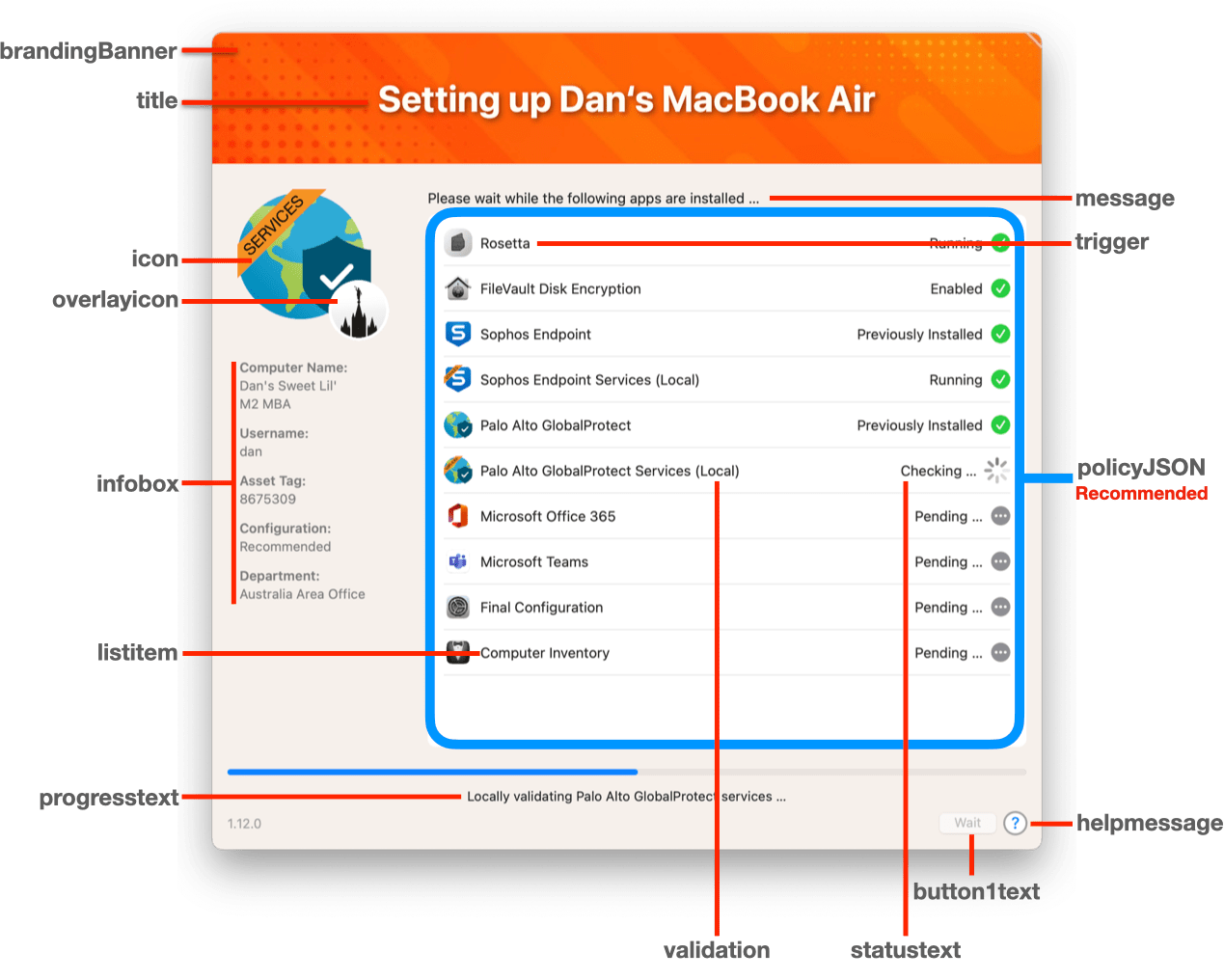
Branding
Custom branding and support information for both the “Welcome” and the “Setup Your Mac” dialogs are controlled as displayed below:
# Branding overrides
brandingBanner="https://img.freepik.com/free-vector/abstract-orange-background-with-lines-halftone-effect_1017-32107.jpg"
brandingBannerDisplayText="true"
brandingIconLight="https://cdn-icons-png.flaticon.com/512/979/979585.png"
brandingIconDark="https://cdn-icons-png.flaticon.com/512/740/740878.png"

# IT Support Variables - Use these if the default text is fine but you want your org's info inserted instead
supportTeamName="Support Team Name"
supportTeamPhone="+1 (801) 555-1212"
supportTeamEmail="support@domain.com"
supportKB="KB8675309"
supportTeamErrorKB=", and mention [${supportKB}](https://servicenow.company.com/support?id=kb_article_view&sysparm_article=${supportKB}#Failures)"
supportTeamHelpKB="\n- **Knowledge Base Article:** ${supportKB}"
Configurations
The list of Jamf Pro policies to be executed by Setup Your Mac is controlled by policyJSON variables, which belong to one of four Configurations:
configurationOneNameconfigurationTwoNameconfigurationThreeName- Catch-all
(If only a single Configuration is required, modify the “catch-all” policyJSON.)
# # # # # # # # # # # # # # # # # # # # # # # # # # # # # # # # # # # # # # # # # # # # # # # # # #
# Configuration Variables
# # # # # # # # # # # # # # # # # # # # # # # # # # # # # # # # # # # # # # # # # # # # # # # # # #

configurationDownloadEstimation="true"      # [ true (default) | false ]
correctionCoefficient="1.01"                # "Fudge factor" (to help estimate match reality)

configurationCatchAllSize="34"              # Catch-all Configuration in Gibibits (i.e., Total File Size in Gigabytes * 7.451)
configurationCatchAllInstallBuffer="0"      # Buffer time added to estimates to include installation time of packages, in seconds. Set to 0 to disable.

configurationOneName="Required"
configurationOneDescription="Minimum organization apps"
configurationOneSize="34"                   # Configuration One in Gibibits (i.e., Total File Size in Gigabytes * 7.451)
configurationOneInstallBuffer="0"           # Buffer time added to estimates to include installation time of packages, in seconds. Set to 0 to disable.

configurationTwoName="Recommended"
configurationTwoDescription="Required apps and Microsoft Office"
configurationTwoSize="62"                   # Configuration Two in Gibibits (i.e., Total File Size in Gigabytes * 7.451)
configurationTwoInstallBuffer="0"           # Buffer time added to estimates to include installation time of packages, in seconds. Set to 0 to disable.

configurationThreeName="Complete"
configurationThreeDescription="Recommended apps, Adobe Acrobat Reader and Google Chrome"
configurationThreeSize="106"                # Configuration Three in Gibibits (i.e., Total File Size in Gigabytes * 7.451)
configurationThreeInstallBuffer="0"         # Buffer time added to estimates to include installation time of packages, in seconds. Set to 0 to disable.
Each Configuration’s policyJSON is comprised of steps which contain the following elements:
listitem: The text to be displayed in the listicon: The hash of the icon to be displayedprogresstext: The text to be displayed below the progress bartrigger: The Jamf Pro Policy Custom Event Name- Note: The
recontrigger is built-in to SYM to update the computer’s inventory with your Jamf Pro server and most likely should be included at least once in eachpolicyJSON
- Note: The
validation:{absolute path}(simulates pre-1.6.0behavior, for example:
"/Applications/Microsoft Teams.app/Contents/Info.plist")Local(for validation within the Setup Your Mac script, for example:"filevault")Remote(for validation via a single-script Jamf Pro policy, for example:"symvGlobalProtect")None(for triggers which don’t require validation; always evaluates assuccessful)Recon(to update the computer’s inventory with your Jamf Pro server)
"${configurationOneName}" )

policyJSON='
{
    "steps": [
        {
            "listitem": "Rosetta",
            "icon": "8bac19160fabb0c8e7bac97b37b51d2ac8f38b7100b6357642d9505645d37b52",
            "progresstext": "Rosetta enables a Mac with Apple silicon to use apps built for a Mac with an Intel processor.",
            "trigger_list": [
                {
                    "trigger": "rosettaInstall",
                    "validation": "None"
                },
                {
                    "trigger": "rosetta",
                    "validation": "Local"
                }
            ]
        },
F. Customize the Setup Your Mac script
Jamf Pro Policy Custom Events
After adding Custom Events to your Jamf Pro Policies as required, use your favorite editor to modify ~/Downloads/Setup-Your-Mac-via-Dialog-reference.bash for your environment.
“Welcome” dialog
See: D. Review the default Welcome dialog.
“Setup Your Mac” dialog
Branding
Custom branding and support information for both the “Welcome” and the “Setup Your Mac” dialogs are controlled as displayed below:
# Branding overrides
brandingBanner="https://img.freepik.com/free-vector/abstract-orange-background-with-lines-halftone-effect_1017-32107.jpg"
brandingBannerDisplayText="true"
brandingIconLight="https://cdn-icons-png.flaticon.com/512/979/979585.png"
brandingIconDark="https://cdn-icons-png.flaticon.com/512/740/740878.png"

# IT Support Variables - Use these if the default text is fine but you want your org's info inserted instead
supportTeamName="Support Team Name"
supportTeamPhone="+1 (801) 555-1212"
supportTeamEmail="support@domain.com"
supportKB="KB8675309"
supportTeamErrorKB=", and mention [${supportKB}](https://servicenow.company.com/support?id=kb_article_view&sysparm_article=${supportKB}#Failures)"
supportTeamHelpKB="\n- **Knowledge Base Article:** ${supportKB}"
Configure the setupYourMacPolicyArrayIconPrefixUrl to the fully qualified domain name of the server which hosts your icons, including any required sub-directories. (See Jamf’s Cloud Services Connection: Icon Service.)
# # # # # # # # # # # # # # # # # # # # # # # # # # # # # # # # # # # # # # # # # # # # # # # # # #
# The fully qualified domain name of the server which hosts your icons, including any required sub-directories
# # # # # # # # # # # # # # # # # # # # # # # # # # # # # # # # # # # # # # # # # # # # # # # # # #

setupYourMacPolicyArrayIconPrefixUrl="https://ics.services.jamfcloud.com/icon/hash_"
Configurations
The list of Jamf Pro policies to be executed is controlled by one of four policyJSON variables; if only a single Configuration is required, modify the “catch-all” policyJSON):
configurationOneNameconfigurationTwoNameconfigurationThreeName- Catch-all
"${configurationOneName}" )

    policyJSON='
    {
        "steps": [
"${configurationTwoName}" )

    policyJSON='
    {
        "steps": [
"${configurationThreeName}" )

    policyJSON='
    {
        "steps": [
* ) # Catch-all (i.e., used when `welcomeDialog` is set to `video`, `messageOnly` or `false`)

    policyJSON='
    {
        "steps": [
Next, for each Configuration-specific policyJSON, specify:
listitem: The text to be displayed in the listicon: The hash of the icon to be displayedprogresstext: The text to be displayed below the progress bartrigger: The Jamf Pro Policy Custom Event Name- Note: The
recontrigger is built-in to SYM to update the computer’s inventory with your Jamf Pro server and most likely should be included at least once in eachpolicyJSON
- Note: The
validation:{absolute path}(simulates pre-1.6.0behavior, for example:
"/Applications/Microsoft Teams.app/Contents/Info.plist")Local(for validation within the Setup Your Mac script, for example:"filevault")Remote(for validation via a single-script Jamf Pro policy, for example:"symvGlobalProtect")None(for triggers which don’t require validation; always evaluates assuccessful)Recon(to update the computer’s inventory with your Jamf Pro server)
        "${configurationOneName}" )

            policyJSON='
            {
                "steps": [
                    {
                        "listitem": "Rosetta",
                        "icon": "8bac19160fabb0c8e7bac97b37b51d2ac8f38b7100b6357642d9505645d37b52",
                        "progresstext": "Rosetta enables a Mac with Apple silicon to use apps built for a Mac with an Intel processor.",
                        "trigger_list": [
                            {
                                "trigger": "rosettaInstall",
                                "validation": "None"
                            },
                            {
                                "trigger": "rosetta",
                                "validation": "Local"
                            }
                        ]
                    },
Each policyJSON should most likely end with the recon trigger and validation:
{
    "listitem": "Computer Inventory",
    "icon": "ff2147a6c09f5ef73d1c4406d00346811a9c64c0b6b7f36eb52fcb44943d26f9",
    "progresstext": "A listing of your Mac’s apps and settings — its inventory — is sent automatically to the Jamf Pro server daily.",
    "trigger_list": [
        {
            "trigger": "recon",
            "validation": "recon"
        }
    ]
}
Sample policyJSON
You can validate each policyJSON by copying everything between the beginning and ending curly braces { … } and pasting at jsonlint.com.
# # # # # # # # # # # # # # # # # # # # # # # # # # # # # # # # # # # # # # # # # # # # # # # # # #
# Select `policyJSON` based on Configuration selected in "Welcome" dialog (thanks, @drtaru!)
# # # # # # # # # # # # # # # # # # # # # # # # # # # # # # # # # # # # # # # # # # # # # # # # # #
function policyJSONConfiguration() {
outputLineNumberInVerboseDebugMode
updateScriptLog "WELCOME DIALOG: PolicyJSON Configuration: $symConfiguration"
case ${symConfiguration} in
"${configurationOneName}" )
policyJSON='
{
"steps": [
{
"listitem": "Rosetta",
"icon": "8bac19160fabb0c8e7bac97b37b51d2ac8f38b7100b6357642d9505645d37b52",
"progresstext": "Rosetta enables a Mac with Apple silicon to use apps built for a Mac with an Intel processor.",
"trigger_list": [
{
"trigger": "rosettaInstall",
"validation": "None"
},
{
"trigger": "rosetta",
"validation": "Local"
}
]
},
{
"listitem": "FileVault Disk Encryption",
"icon": "f9ba35bd55488783456d64ec73372f029560531ca10dfa0e8154a46d7732b913",
"progresstext": "FileVault is built-in to macOS and provides full-disk encryption to help prevent unauthorized access to your Mac.",
"trigger_list": [
{
"trigger": "filevault",
"validation": "Local"
}
]
},
{
"listitem": "Sophos Endpoint",
"icon": "c70f1acf8c96b99568fec83e165d2a534d111b0510fb561a283d32aa5b01c60c",
"progresstext": "You’ll enjoy next-gen protection with Sophos Endpoint which doesn’t rely on signatures to catch malware.",
"trigger_list": [
{
"trigger": "sophosEndpoint",
"validation": "/Applications/Sophos/Sophos Endpoint.app/Contents/Info.plist"
}
]
},
{
"listitem": "Sophos Endpoint Services (Remote)",
"icon": "0f68be689684a00a3a054d71a31e43e2362f96c16efa5a560fb61bc1bf41901c",
"progresstext": "Remotely validating Sophos Endpoint services …",
"trigger_list": [
{
"trigger": "symvSophosEndpointRTS",
"validation": "Remote"
}
]
},
{
"listitem": "Palo Alto GlobalProtect",
"icon": "acbf39d8904ad1a772cf71c45d93e373626d379a24f8b1283b88134880acb8ef",
"progresstext": "Use Palo Alto GlobalProtect to establish a Virtual Private Network (VPN) connection to Church headquarters.",
"trigger_list": [
{
"trigger": "globalProtect",
"validation": "/Applications/GlobalProtect.app/Contents/Info.plist"
}
]
},
{
"listitem": "Palo Alto GlobalProtect Services (Remote)",
"icon": "709e8bdf0019e8faf9df85ec0a68545bfdb8bfa1227ac9bed9bba40a1fa8ff42",
"progresstext": "Remotely validating Palo Alto GlobalProtect services …",
"trigger_list": [
{
"trigger": "symvGlobalProtect",
"validation": "Remote"
}
]
},
{
"listitem": "Final Configuration",
"icon": "4723e3e341a7e11e6881e418cf91b157fcc081bdb8948697750e5da3562df728",
"progresstext": "Finalizing Configuration …",
"trigger_list": [
{
"trigger": "finalConfiguration",
"validation": "None"
},
{
"trigger": "reconAtReboot",
"validation": "None"
}
]
},
{
"listitem": "Computer Inventory",
"icon": "ff2147a6c09f5ef73d1c4406d00346811a9c64c0b6b7f36eb52fcb44943d26f9",
"progresstext": "A listing of your Mac’s apps and settings — its inventory — is sent automatically to the Jamf Pro server daily.",
"trigger_list": [
{
"trigger": "recon",
"validation": "recon"
}
]
}
]
}
'
;;
"${configurationTwoName}" )
policyJSON='
{
"steps": [
{
"listitem": "Rosetta",
"icon": "8bac19160fabb0c8e7bac97b37b51d2ac8f38b7100b6357642d9505645d37b52",
"progresstext": "Rosetta enables a Mac with Apple silicon to use apps built for a Mac with an Intel processor.",
"trigger_list": [
{
"trigger": "rosettaInstall",
"validation": "None"
},
{
"trigger": "rosetta",
"validation": "Local"
}
]
},
{
"listitem": "FileVault Disk Encryption",
"icon": "f9ba35bd55488783456d64ec73372f029560531ca10dfa0e8154a46d7732b913",
"progresstext": "FileVault is built-in to macOS and provides full-disk encryption to help prevent unauthorized access to your Mac.",
"trigger_list": [
{
"trigger": "filevault",
"validation": "Local"
}
]
},
{
"listitem": "Sophos Endpoint",
"icon": "c70f1acf8c96b99568fec83e165d2a534d111b0510fb561a283d32aa5b01c60c",
"progresstext": "You’ll enjoy next-gen protection with Sophos Endpoint which doesn’t rely on signatures to catch malware.",
"trigger_list": [
{
"trigger": "sophosEndpoint",
"validation": "/Applications/Sophos/Sophos Endpoint.app/Contents/Info.plist"
}
]
},
{
"listitem": "Sophos Endpoint Services (Local)",
"icon": "0f68be689684a00a3a054d71a31e43e2362f96c16efa5a560fb61bc1bf41901c",
"progresstext": "Locally validating Sophos Endpoint services …",
"trigger_list": [
{
"trigger": "sophosEndpointServices",
"validation": "Local"
}
]
},
{
"listitem": "Palo Alto GlobalProtect",
"icon": "acbf39d8904ad1a772cf71c45d93e373626d379a24f8b1283b88134880acb8ef",
"progresstext": "Use Palo Alto GlobalProtect to establish a Virtual Private Network (VPN) connection to Church headquarters.",
"trigger_list": [
{
"trigger": "globalProtect",
"validation": "/Applications/GlobalProtect.app/Contents/Info.plist"
}
]
},
{
"listitem": "Palo Alto GlobalProtect Services (Local)",
"icon": "709e8bdf0019e8faf9df85ec0a68545bfdb8bfa1227ac9bed9bba40a1fa8ff42",
"progresstext": "Locally validating Palo Alto GlobalProtect services …",
"trigger_list": [
{
"trigger": "globalProtect",
"validation": "Local"
}
]
},
{
"listitem": "Microsoft Office 365",
"icon": "10e2ebed512e443189badcaf9143293d447f4a3fd8562cd419f6666ca07eb775",
"progresstext": "Microsoft Office 365 for Mac gives you the essentials to get it all done with the classic versions of the Office applications.",
"trigger_list": [
{
"trigger": "microsoftOffice365",
"validation": "/Applications/Microsoft Outlook.app/Contents/Info.plist"
},
{
"trigger": "symvMicrosoftOffice365",
"validation": "Remote"
}
]
},
{
"listitem": "Microsoft Teams",
"icon": "dcb65709dba6cffa90a5eeaa54cb548d5ecc3b051f39feadd39e02744f37c19e",
"progresstext": "Microsoft Teams is a hub for teamwork in Office 365. Keep all your team’s chats, meetings and files together in one place.",
"trigger_list": [
{
"trigger": "microsoftTeams",
"validation": "/Applications/Microsoft Teams.app/Contents/Info.plist"
}
]
},
{
"listitem": "Final Configuration",
"icon": "4723e3e341a7e11e6881e418cf91b157fcc081bdb8948697750e5da3562df728",
"progresstext": "Finalizing Configuration …",
"trigger_list": [
{
"trigger": "finalConfiguration",
"validation": "None"
},
{
"trigger": "reconAtReboot",
"validation": "None"
}
]
},
{
"listitem": "Computer Inventory",
"icon": "ff2147a6c09f5ef73d1c4406d00346811a9c64c0b6b7f36eb52fcb44943d26f9",
"progresstext": "A listing of your Mac’s apps and settings — its inventory — is sent automatically to the Jamf Pro server daily.",
"trigger_list": [
{
"trigger": "recon",
"validation": "recon"
}
]
}
]
}
'
;;
"${configurationThreeName}" )
policyJSON='
{
"steps": [
{
"listitem": "Rosetta",
"icon": "8bac19160fabb0c8e7bac97b37b51d2ac8f38b7100b6357642d9505645d37b52",
"progresstext": "Rosetta enables a Mac with Apple silicon to use apps built for a Mac with an Intel processor.",
"trigger_list": [
{
"trigger": "rosettaInstall",
"validation": "None"
},
{
"trigger": "rosetta",
"validation": "Local"
}
]
},
{
"listitem": "FileVault Disk Encryption",
"icon": "f9ba35bd55488783456d64ec73372f029560531ca10dfa0e8154a46d7732b913",
"progresstext": "FileVault is built-in to macOS and provides full-disk encryption to help prevent unauthorized access to your Mac.",
"trigger_list": [
{
"trigger": "filevault",
"validation": "Local"
}
]
},
{
"listitem": "Sophos Endpoint",
"icon": "c70f1acf8c96b99568fec83e165d2a534d111b0510fb561a283d32aa5b01c60c",
"progresstext": "You’ll enjoy next-gen protection with Sophos Endpoint which doesn’t rely on signatures to catch malware.",
"trigger_list": [
{
"trigger": "sophosEndpoint",
"validation": "/Applications/Sophos/Sophos Endpoint.app/Contents/Info.plist"
}
]
},
{
"listitem": "Sophos Endpoint Services (Local)",
"icon": "0f68be689684a00a3a054d71a31e43e2362f96c16efa5a560fb61bc1bf41901c",
"progresstext": "Locally validating Sophos Endpoint services …",
"trigger_list": [
{
"trigger": "sophosEndpointServices",
"validation": "Local"
}
]
},
{
"listitem": "Sophos Endpoint Services (Remote)",
"icon": "0f68be689684a00a3a054d71a31e43e2362f96c16efa5a560fb61bc1bf41901c",
"progresstext": "Remotely validating Sophos Endpoint services …",
"trigger_list": [
{
"trigger": "symvSophosEndpointRTS",
"validation": "Remote"
}
]
},
{
"listitem": "Palo Alto GlobalProtect",
"icon": "acbf39d8904ad1a772cf71c45d93e373626d379a24f8b1283b88134880acb8ef",
"progresstext": "Use Palo Alto GlobalProtect to establish a Virtual Private Network (VPN) connection to Church headquarters.",
"trigger_list": [
{
"trigger": "globalProtect",
"validation": "/Applications/GlobalProtect.app/Contents/Info.plist"
}
]
},
{
"listitem": "Palo Alto GlobalProtect Services (Local)",
"icon": "709e8bdf0019e8faf9df85ec0a68545bfdb8bfa1227ac9bed9bba40a1fa8ff42",
"progresstext": "Locally validating Palo Alto GlobalProtect services …",
"trigger_list": [
{
"trigger": "globalProtect",
"validation": "Local"
}
]
},
{
"listitem": "Palo Alto GlobalProtect Services (Remote)",
"icon": "709e8bdf0019e8faf9df85ec0a68545bfdb8bfa1227ac9bed9bba40a1fa8ff42",
"progresstext": "Remotely validating Palo Alto GlobalProtect services …",
"trigger_list": [
{
"trigger": "symvGlobalProtect",
"validation": "Remote"
}
]
},
{
"listitem": "Microsoft Office 365",
"icon": "10e2ebed512e443189badcaf9143293d447f4a3fd8562cd419f6666ca07eb775",
"progresstext": "Microsoft Office 365 for Mac gives you the essentials to get it all done with the classic versions of the Office applications.",
"trigger_list": [
{
"trigger": "microsoftOffice365",
"validation": "/Applications/Microsoft Outlook.app/Contents/Info.plist"
},
{
"trigger": "symvMicrosoftOffice365",
"validation": "Remote"
}
]
},
{
"listitem": "Microsoft Teams",
"icon": "dcb65709dba6cffa90a5eeaa54cb548d5ecc3b051f39feadd39e02744f37c19e",
"progresstext": "Microsoft Teams is a hub for teamwork in Office 365. Keep all your team’s chats, meetings and files together in one place.",
"trigger_list": [
{
"trigger": "microsoftTeams",
"validation": "/Applications/Microsoft Teams.app/Contents/Info.plist"
}
]
},
{
"listitem": "Adobe Acrobat Reader",
"icon": "988b669ca27eab93a9bcd53bb7e2873fb98be4eaa95ae8974c14d611bea1d95f",
"progresstext": "Views, prints, and comments on PDF documents, and connects to Adobe Document Cloud.",
"trigger_list": [
{
"trigger": "adobeAcrobatReader",
"validation": "/Applications/Adobe Acrobat Reader.app/Contents/Info.plist"
}
]
},
{
"listitem": "Google Chrome",
"icon": "12d3d198f40ab2ac237cff3b5cb05b09f7f26966d6dffba780e4d4e5325cc701",
"progresstext": "Google Chrome is a browser that combines a minimal design with sophisticated technology to make the Web faster.",
"trigger_list": [
{
"trigger": "googleChrome",
"validation": "/Applications/Google Chrome.app/Contents/Info.plist"
}
]
},
{
"listitem": "Final Configuration",
"icon": "4723e3e341a7e11e6881e418cf91b157fcc081bdb8948697750e5da3562df728",
"progresstext": "Finalizing Configuration …",
"trigger_list": [
{
"trigger": "finalConfiguration",
"validation": "None"
},
{
"trigger": "reconAtReboot",
"validation": "None"
}
]
},
{
"listitem": "Computer Inventory",
"icon": "ff2147a6c09f5ef73d1c4406d00346811a9c64c0b6b7f36eb52fcb44943d26f9",
"progresstext": "A listing of your Mac’s apps and settings — its inventory — is sent automatically to the Jamf Pro server daily.",
"trigger_list": [
{
"trigger": "recon",
"validation": "recon"
}
]
}
]
}
'
;;
* ) # Catch-all (i.e., used when `welcomeDialog` is set to `video`, `messageOnly` or `false`)
policyJSON='
{
"steps": [
{
"listitem": "Rosetta",
"icon": "8bac19160fabb0c8e7bac97b37b51d2ac8f38b7100b6357642d9505645d37b52",
"progresstext": "Rosetta enables a Mac with Apple silicon to use apps built for a Mac with an Intel processor.",
"trigger_list": [
{
"trigger": "rosettaInstall",
"validation": "None"
},
{
"trigger": "rosetta",
"validation": "Local"
}
]
},
{
"listitem": "FileVault Disk Encryption",
"icon": "f9ba35bd55488783456d64ec73372f029560531ca10dfa0e8154a46d7732b913",
"progresstext": "FileVault is built-in to macOS and provides full-disk encryption to help prevent unauthorized access to your Mac.",
"trigger_list": [
{
"trigger": "filevault",
"validation": "Local"
}
]
},
{
"listitem": "Sophos Endpoint",
"icon": "c70f1acf8c96b99568fec83e165d2a534d111b0510fb561a283d32aa5b01c60c",
"progresstext": "You’ll enjoy next-gen protection with Sophos Endpoint which doesn’t rely on signatures to catch malware.",
"trigger_list": [
{
"trigger": "sophosEndpoint",
"validation": "/Applications/Sophos/Sophos Endpoint.app/Contents/Info.plist"
},
{
"trigger": "symvSophosEndpointRTS",
"validation": "Remote"
}
]
},
{
"listitem": "Palo Alto GlobalProtect",
"icon": "acbf39d8904ad1a772cf71c45d93e373626d379a24f8b1283b88134880acb8ef",
"progresstext": "Use Palo Alto GlobalProtect to establish a Virtual Private Network (VPN) connection to Church headquarters.",
"trigger_list": [
{
"trigger": "globalProtect",
"validation": "/Applications/GlobalProtect.app/Contents/Info.plist"
},
{
"trigger": "symvGlobalProtect",
"validation": "Remote"
}
]
},
{
"listitem": "Final Configuration",
"icon": "4723e3e341a7e11e6881e418cf91b157fcc081bdb8948697750e5da3562df728",
"progresstext": "Finalizing Configuration …",
"trigger_list": [
{
"trigger": "finalConfiguration",
"validation": "None"
},
{
"trigger": "reconAtReboot",
"validation": "None"
}
]
},
{
"listitem": "Computer Inventory",
"icon": "ff2147a6c09f5ef73d1c4406d00346811a9c64c0b6b7f36eb52fcb44943d26f9",
"progresstext": "A listing of your Mac’s apps and settings — its inventory — is sent automatically to the Jamf Pro server daily.",
"trigger_list": [
{
"trigger": "recon",
"validation": "recon"
}
]
}
]
}
'
;;
esac
}
“Failure” dialog

failureDialog="true" # Display the so-called "Failure" dialog (after the main SYM dialog) [ true | false
####################################################################################################
#
# Failure dialog
#
####################################################################################################

# # # # # # # # # # # # # # # # # # # # # # # # # # # # # # # # # # # # # # # # # # # # # # # # # #
# "Failure" dialog Title, Message and Icon
# # # # # # # # # # # # # # # # # # # # # # # # # # # # # # # # # # # # # # # # # # # # # # # # # #

failureTitle="Failure Detected"
failureMessage="Placeholder message; update in the 'finalise' function"
failureIcon="SF=xmark.circle.fill,weight=bold,colour1=#BB1717,colour2=#F31F1F"


# # # # # # # # # # # # # # # # # # # # # # # # # # # # # # # # # # # # # # # # # # # # # # # # # #
# "Failure" dialog Settings and Features
# # # # # # # # # # # # # # # # # # # # # # # # # # # # # # # # # # # # # # # # # # # # # # # # # #

dialogFailureCMD="$dialogBinary \
--moveable \
--title \"$failureTitle\" \
--message \"$failureMessage\" \
--icon \"$failureIcon\" \
--iconsize 125 \
--width 625 \
--height 45% \
--position topright \
--button1text \"Close\" \
--infotext \"$scriptVersion\" \
--titlefont 'size=22' \
--messagefont 'size=14' \
--overlayicon \"$overlayicon\" \
--commandfile \"$failureCommandFile\" "
finalise function
To change the message displayed in the “Failure” dialog, modify the failureMessage as shown below:
# # # # # # # # # # # # # # # # # # # # # # # # # # # # # # # # # # # # # # # # # # # # # # # # # #
# Finalise User Experience
# # # # # # # # # # # # # # # # # # # # # # # # # # # # # # # # # # # # # # # # # # # # # # # # # #

function finalise(){

    outputLineNumberInVerboseDebugMode

    if [[ "${configurationDownloadEstimation}" == "true" ]]; then

        outputLineNumberInVerboseDebugMode
        calculateFreeDiskSpace "FINALISE USER EXPERIENCE"

    fi

    if [[ "${jamfProPolicyTriggerFailure}" == "failed" ]]; then

        outputLineNumberInVerboseDebugMode
        updateScriptLog "Failed polcies detected …"
        if [[ -n "${webhookURL}" ]]; then
            updateScriptLog "Display Failure dialog: Sending webhook message"
            webhookStatus="Failures detected"
            webHookMessage
        fi

        if [[ "${failureDialog}" == "true" ]]; then

            outputLineNumberInVerboseDebugMode
            updateScriptLog "Display Failure dialog: ${failureDialog}"

            killProcess "caffeinate"
            if [[ "${brandingBannerDisplayText}" == "true" ]] ; then dialogUpdateSetupYourMac "title: Sorry ${loggedInUserFirstname}, something went sideways"; fi
            dialogUpdateSetupYourMac "icon: SF=xmark.circle.fill,weight=bold,colour1=#BB1717,colour2=#F31F1F"
            dialogUpdateSetupYourMac "progresstext: Failures detected. Please click Continue for troubleshooting information."
            dialogUpdateSetupYourMac "button1text: Continue …"
            dialogUpdateSetupYourMac "button1: enable"
            dialogUpdateSetupYourMac "progress: reset"

            # Wait for user-acknowledgment due to detected failure
            wait

            dialogUpdateSetupYourMac "quit:"
            eval "${dialogFailureCMD}" & sleep 0.3

            updateScriptLog "\n\n# # #\n# FAILURE DIALOG\n# # #\n"
            updateScriptLog "Jamf Pro Policy Name Failures:"


            failureMessage="A failure has been detected, ${loggedInUserFirstname}. \n\nPlease complete the following steps:\n1. Reboot and login to your ${modelName}  \n2. Login to Self Service  \n3. Re-run any failed policy listed below  \n\nThe following failed:  \n${jamfProPolicyNameFailures}"

            if [[ -n "$supportTeamName" ]]; then
                supportContactMessage+="If you need assistance, please contact the ${supportTeamName},"

                if [[ -n "$supportTeamEmail" ]]; then
                    supportContactMessage+="\n${supportTeamEmail}"
                fi

                if [[ -n "${supportTeamPhone}" ]]; then
                    supportContactMessage+="\n${supportTeamPhone}"
                fi

                if [[ -n "${supportKB}" ]]; then
                    supportContactMessage+="\n${supportTeamErrorKB}"
                fi
            supportContactMessage+="."
            fi


            failureMessage+="\n\n${supportContactMessage}"

            dialogUpdateFailure "message: ${failureMessage}"

            dialogUpdateFailure "icon: SF=xmark.circle.fill,weight=bold,colour1=#BB1717,colour2=#F31F1F"
            dialogUpdateFailure "button1text: ${button1textCompletionActionOption}"

            # Wait for user-acknowledgment due to detected failure
            wait

            dialogUpdateFailure "quit:"
            quitScript "1"

        else

            outputLineNumberInVerboseDebugMode
            updateScriptLog "Display Failure dialog: ${failureDialog}"

            killProcess "caffeinate"
            if [[ "${brandingBannerDisplayText}" == "true" ]] ; then dialogUpdateSetupYourMac "title: Sorry ${loggedInUserFirstname}, something went sideways"; fi
            dialogUpdateSetupYourMac "icon: SF=xmark.circle.fill,weight=bold,colour1=#BB1717,colour2=#F31F1F"
            dialogUpdateSetupYourMac "progresstext: Failures detected."
            dialogUpdateSetupYourMac "button1text: ${button1textCompletionActionOption}"
            dialogUpdateSetupYourMac "button1: enable"
            dialogUpdateSetupYourMac "progress: reset"
            dialogUpdateSetupYourMac "progresstext: Errors detected; please ${progressTextCompletionAction// and } your ${modelName}, ${loggedInUserFirstname}."

            # If either "wait" or "sleep" has been specified for `completionActionOption`, honor that behavior
            if [[ "${completionActionOption}" == "wait" ]] || [[ "${completionActionOption}" == "[Ss]leep"* ]]; then
                updateScriptLog "Honoring ${completionActionOption} behavior …"
                eval "${completionActionOption}" "${dialogSetupYourMacProcessID}"
            fi

            quitScript "1"

        fi

    else

        outputLineNumberInVerboseDebugMode
        updateScriptLog "All polcies executed successfully"
        if [[ -n "${webhookURL}" ]]; then
            webhookStatus="Successful"
            updateScriptLog "Sending success webhook message"
            webHookMessage
        fi

        if [[ "${brandingBannerDisplayText}" == "true" ]] ; then dialogUpdateSetupYourMac "title: ${loggedInUserFirstname}‘s ${modelName} is ready!"; fi
        dialogUpdateSetupYourMac "icon: SF=checkmark.circle.fill,weight=bold,colour1=#00ff44,colour2=#075c1e"
        dialogUpdateSetupYourMac "progresstext: Complete! Please ${progressTextCompletionAction}enjoy your new ${modelName}, ${loggedInUserFirstname}!"
        dialogUpdateSetupYourMac "progress: complete"
        dialogUpdateSetupYourMac "button1text: ${button1textCompletionActionOption}"
        dialogUpdateSetupYourMac "button1: enable"

        # If either "wait" or "sleep" has been specified for `completionActionOption`, honor that behavior
        if [[ "${completionActionOption}" == "wait" ]] || [[ "${completionActionOption}" == "[Ss]leep"* ]]; then
            updateScriptLog "Honoring ${completionActionOption} behavior …"
            eval "${completionActionOption}" "${dialogSetupYourMacProcessID}"
        fi

        quitScript "0"

    fi

}
Debug Mode
Execute your customized SYM script via Terminal, toggling debugMode from verbose to true to false:
debugMode="${5:-"verbose"}" # Parameter 5: Debug Mode [ verbose (default) | true | false ]5
Note: When debugMode is set to true or verbose, Jamf Pro policies do not execute.
G. Add your customized Setup Your Mac script to your Jamf Pro server
- Add your customized script to your Jamf Pro server
- Specify the following for Options > Parameter Labels
- Parameter 4:
Script Log Location [ /var/log/com.company.log ] (i.e., Your organization's default location for client-side logs) - Parameter 5:
Debug Mode [ verbose (default) | true | false ] - Parameter 6:
Welcome dialog [ userInput (default) | video | messageOnly | false ] - Parameter 7:
Completion Action [ wait | sleep (with seconds) | Shut Down | Shut Down Attended | Shut Down Confirm | Restart | Restart Attended (default) | Restart Confirm | Log Out | Log Out Attended | Log Out Confirm ] - Parameter 8:
Required Minimum Build [ disabled (default) | 22G ] (i.e., Your organization's required minimum build of macOS to allow users to proceed; use "22G" for macOS 13.5.2) - Parameter 9:
Outdated OS Action [ /System/Library/CoreServices/Software Update.app (default) | jamfselfservice://content?entity=policy&id=117&action=view ] (i.e., Jamf Pro Self Service policy ID for operating system ugprades) - Parameter 10:
Microsoft Teams or Slack Webhook URL [ Leave blank to disable (default) | https://microsoftTeams.webhook.com/URL | https://hooks.slack.com/services/URL ] - Parameter 11:
Configuration (i.e., policyJSON; NOTE: Only used when welcomeDialog is set to video, false or messageOnly)
- Parameter 4:
- Click Save

Completion Actions (Parameter 7)
In addition to the previous wait and sleep options, Setup Your Mac (1.4.0) introduced the following Completion Action options:
| Log Out | Restart | Shut Down | |
|---|---|---|---|
| User is forcibly logged out | Computer is forcibly restarted | Computer is forcibly shut down | |
| Attended | User is forcibly logged out, after interacting with Setup Your Mac dialogs | Computer is forcibly restarted, after user interacts with Setup Your Mac dialogs | Computer is forcibly shut down, after user interacts with Setup Your Mac dialogs |
| Confirm | User is prompted to Log Out via the dismissible, built-in macOS dialog box | User is prompted to Restart via the dismissible, built-in macOS dialog box | User is prompted to Shut Down via the dismissible, built-in macOS dialog box |
Dynamic Button Label & Progress Text
Additionally, the label for the default button, button1text, and the message below the progress bar, progresstext, are dynamically updated based on the specified Completion Action:
| Setup Your Mac dialog | Failure dialog | ||
|---|---|---|---|
| Successful | Failure | ||
| Shut Down | Shutting Down … | Continue … | Shut Down |
| Shut Down Attended | Shut Down | ||
| Shut Down Confirm | |||
| Restart | Restarting … | Restart | |
| Restart Attended | Restart | ||
| Restart Confirm | |||
| Log Out | Logging Out … | Log Out | |
| Log Out Attended | Log Out | ||
| Log Out Confirm | |||


Required Minimum Build (Parameter 8)
Help mitigate zero-day attacks by specifying a minimum OS build before Setup Your Mac can be completed.
In the following example, the operating system of the testing computer is older than macOS 13.2 (22D49), and the user observes an error message to update:


Use the following table as a guide to determine your organization’s preferred value for Required Minimum Build:
| Version | Build | Required |
|---|---|---|
| 14.3.1 | 23D60 | 23D |
| 14.3 | 23D56 | 23D |
| 14.2.1 | 23C71 | 23C |
| 14.1 | 23B74 | 23B |
| 14.0 | 23A344 | 23A |
| 13.6.1 | 22G313 | 22G |
| 12.7.1 | 21G920 | 21G |
Outdated OS Action (Parameter 9)
Determine what should happen when a user runs your customized Setup Your Mac policy on a computer with an outdated version of macOS (as determined by the value entered for Required Minimum Build):
Jamf Pro Policy
To open Jamf Pro’s Self Service to a specific policy:
- Navigate to the policy in Jamf Pro
- Click Self Service
- Scroll down to the Policy URLs section
- Copy the desired URL
- Paste the copied URL in Outdated OS Action (Parameter 9)
Open Software Update
To open Software Update, enter the following for Outdated OS Action (Parameter 9):/System/Library/CoreServices/Software Update.app

Setup Your Mac (1.7.0 and later) Outdated OS Action (01:00; no audio)
Microsoft Teams or Slack Webhook URL (Parameter 10)
Specify either a Microsoft Teams or Slack Webhook URL in Parameter 10 to keep your entire team up-to-date on both successful and failed SYM executions; leave Parameter 10 blank to disable.

Note: Your policyJSON must include the recon trigger and validation — most frequently as its last listitem — when leveraging Teams or Slack integration:
{
    "listitem": "Computer Inventory",
    "icon": "ff2147a6c09f5ef73d1c4406d00346811a9c64c0b6b7f36eb52fcb44943d26f9",
    "progresstext": "A listing of your Mac’s apps and settings — its inventory — is sent automatically to the Jamf Pro server daily.",
    "trigger_list": [
        {
            "trigger": "recon",
            "validation": "recon"
        }
    ]
}
Note: When debugMode is enabled, the recon trigger does not actually execute and the computerID variable will be blank, causing the “View in Jamf Pro” button to not work as expected.
Specifying a Specific Version of swiftDialog
MacAdmins who wish to specify a specific version of swiftDialog to be used with Setup Your Mac can leverage the Package payload in the Jamf Pro policy, ensuring the SYM script’s Priority is set to After.

Please be aware the dialogCheck function includes a minimum version for swiftDialog:
function dialogCheck() {

    # Output Line Number in `verbose` Debug Mode
    if [[ "${debugMode}" == "verbose" ]]; then updateScriptLog "PRE-FLIGHT CHECK: # # # SETUP YOUR MAC VERBOSE DEBUG MODE: Line No. ${LINENO} # # #" ; fi

    # Check for Dialog and install if not found
    if [ ! -e "/Library/Application Support/Dialog/Dialog.app" ]; then

        updateScriptLog "PRE-FLIGHT CHECK: swiftDialog not found. Installing..."
        dialogInstall

    else

        dialogVersion=$(/usr/local/bin/dialog --version)
        if [[ "${dialogVersion}" < "${swiftDialogMinimumRequiredVersion}" ]]; then

            updateScriptLog "PRE-FLIGHT CHECK: swiftDialog version ${dialogVersion} found but swiftDialog ${swiftDialogMinimumRequiredVersion} or newer is required; updating..."
            dialogInstall

        else

        updateScriptLog "PRE-FLIGHT CHECK: swiftDialog version ${dialogVersion} found; proceeding..."

        fi

    fi

}
H. Create a Jamf Pro Policy to Setup Your Mac
- Create a new Jamf Pro Policy, using the following as a guide for Options > General:
- Set Display Name to
Enrollment: Setup Your Mac (1.12.10)
- Set Execution Frequency to
Ongoing
- Set Display Name to
- Select the Scripts payload and add your customized
Setup Your Mac (1.12.10) via swiftDialogscript, specifying the following Parameter Values- Script Log Location:
/var/log/com.company.log - Debug Mode:
verbose - Welcome dialog:
userInput - Completion Action:
Restart Attended - Required Minimum Build:
22G - Outdated OS Action:
x-apple.systempreferences:com.apple.preferences.softwareupdate?client=bau&installMajorOSBundle=com.apple.InstallAssistant.macOSVentura - Microsoft Teams or Slack Webhook URL:
https://church.webhook.office.com/webhookb2/
- Script Log Location:

- Specify Scope as desired
- Targets:
All Computers - Limitations:
No Limitations - Exclusions:
All Jamf Pro Compliant ComputersmacOS 11 Big Sur and earlierSetup Your Mac: Complete
- Targets:
- Use the following for Self Service
- Self Service Display Name:
Setup Your Mac (1.12.10) - Button Name Before Initiation:
Setup - Button Name After Initiation:
Setup - Icon:
 (download)
 - Description:
- Self Service Display Name:
## Welcome to your new Mac!

Please click **Setup** to apply Church settings to your Mac. (Once completed, your Mac will restart.)

Use this app, the **Workforce App Store**, to install your Church-assigned software and to configure your Mac after inital setup.

---

## Configurations

Select your preferred configuration:

- **Required:** Minimum Church apps
- **Recommended:** Required apps and Microsoft Office
- **Complete:** Recommended apps, Adobe Acrobat Reader and Google Chrome

### Required: Minimum Church apps

**FileVault** is built-in to macOS and provides full-disk encryption using XTS-AES-128 encryption with a 256-bit key to help prevent unauthorized access to the information on your startup disk.

You'll enjoy next-gen protection with **Sophos Endpoint** which doesn’t rely on signatures to catch malware and means it catches zero-day threats without adversely affecting the performance of your device. You'll be protected before exploits even arrive.

Use **Palo Alto GlobalProtect** to establish a Virtual Private Network (VPN) connection to Church headquarters.

**Microsoft Teams** is a hub for teamwork in Office 365. Keep all your team’s chats, meetings, files, and apps together in one place.

**Pro Tip:** By default, the listing of your computer's currently installed apps and system settings — its inventory — is automatically sent to the Jamf Pro server daily.

- Click Save
I. Troubleshooting
1. Welcome dialog doesn’t display
If, in your Jamf Pro policy, you’ve set Welcome dialog (i.e., Parameter 6) to userInput, but the “Welcome” dialog doesn’t display as expected, the issue is most often invalid JSON.
Please double-check the following:
- Confirm the “Welcome” dialog displays when the script is executed via Terminal using a freshly downloaded, timestamped copy of Setup Your Mac:
- Enter your password when prompted
- Confirm you observe the “Welcome” dialog
- Click Quit
timestamp=$( date '+%Y-%m-%d-%H%M%S' ) ; curl -o ~/Downloads/Setup-Your-Mac-via-Dialog-$timestamp.bash https://raw.githubusercontent.com/dan-snelson/Setup-Your-Mac/main/Setup-Your-Mac-via-Dialog.bash ; sudo bash ~/Downloads/Setup-Your-Mac-via-Dialog-$timestamp.bash

- Re-run your customized version of Setup Your Mac and review the client-side logs for entries which contain:
WELCOME DIALOG
2023-08-19 16:42:33 -

###
# Setup Your Mac (1.12.0)
# https://snelson.us/sym
###

2023-08-19 16:42:33 - PRE-FLIGHT CHECK: Initiating …
2023-08-19 16:42:33 - PRE-FLIGHT CHECK: Setup Assistant is no longer running; proceeding …
2023-08-19 16:42:33 - PRE-FLIGHT CHECK: Finder & Dock are running; proceeding …
2023-08-19 16:42:33 - PRE-FLIGHT CHECK: Check for Logged-in System Accounts …
2023-08-19 16:42:33 - PRE-FLIGHT CHECK: Current Logged-in User: dan
2023-08-19 16:42:33 - PRE-FLIGHT CHECK: Current Logged-in User First Name: Dan
2023-08-19 16:42:33 - PRE-FLIGHT CHECK: Current Logged-in User ID: 503
2023-08-19 16:42:33 - PRE-FLIGHT CHECK: 'requiredMinimumBuild' has been set to disabled; skipping OS validation.
2023-08-19 16:42:33 - PRE-FLIGHT CHECK: macOS 13.5.1 (22G90) installed
2023-08-19 16:42:33 - PRE-FLIGHT CHECK: Caffeinating this script (PID: 29739)
2023-08-19 16:42:33 - QUIT SCRIPT: Re-enabling 'jamf' binary check-in
2023-08-19 16:42:33 - QUIT SCRIPT: 'jamf' binary check-in daemon not loaded, attempting to bootstrap and start
2023-08-19 16:42:33 - QUIT SCRIPT: Staring 'jamf' binary check-in daemon
2023-08-19 16:42:33 - PRE-FLIGHT CHECK: swiftDialog version 2.3.0.4718 found; proceeding...
2023-08-19 16:42:33 - PRE-FLIGHT CHECK: Complete
/var/tmp/dialogCommandFileAdmin.lOU
/var/tmp/dialogCommandFileFailure.Ig4
/var/tmp/dialogCommandFilePrompt.8fR
/var/tmp/dialogCommandFileSetupYourMac.k19
/var/tmp/dialogCommandFileWelcome.cXg
2023-08-19 16:42:34 - WELCOME DIALOG: welcomeBannerImage is available, using it
2023-08-19 16:42:34 - WELCOME DIALOG: Auto-caching hosted 'abstract-orange-background-with-lines-halftone-effect_1017-32107.jpg' …
2023-08-19 16:42:35 - WELCOME DIALOG: bannerImage is available
2023-08-19 16:42:35 - WELCOME DIALOG: Disk Space: 455.1 GB free (92.05% available)
2023-08-19 16:42:35 - WELCOME DIALOG: Starting checkNetworkQualityConfigurations …
2023-08-19 16:42:35 - WELCOME DIALOG: Write 'welcomeJSON' to /var/tmp/welcomeJSONFile.Q84 …
2023-08-19 16:42:35 - WELCOME DIALOG: Display Welcome dialog 'infobox' animation …
2023-08-19 16:42:35 - WELCOME DIALOG: Display 'Welcome' dialog …
2023-08-19 16:42:35 - WELCOME DIALOG: dan entered information and clicked Continue
execution error: Error: SyntaxError: JSON Parse error: Unexpected identifier "JSON" (-2700)
execution error: Error: SyntaxError: JSON Parse error: Unexpected identifier "JSON" (-2700)
execution error: Error: SyntaxError: JSON Parse error: Unexpected identifier "JSON" (-2700)
execution error: Error: SyntaxError: JSON Parse error: Unexpected identifier "JSON" (-2700)
execution error: Error: SyntaxError: JSON Parse error: Unexpected identifier "JSON" (-2700)
execution error: Error: SyntaxError: JSON Parse error: Unexpected identifier "JSON" (-2700)
execution error: Error: SyntaxError: JSON Parse error: Unexpected identifier "JSON" (-2700)
execution error: Error: SyntaxError: JSON Parse error: Unexpected identifier "JSON" (-2700)
execution error: Error: SyntaxError: JSON Parse error: Unexpected identifier "JSON" (-2700)
2023-08-19 16:42:36 - WELCOME DIALOG: • Computer Name:
2023-08-19 16:42:36 - WELCOME DIALOG: • User Name:
2023-08-19 16:42:36 - WELCOME DIALOG: • Real Name:
2023-08-19 16:42:36 - WELCOME DIALOG: • E-mail:
2023-08-19 16:42:36 - WELCOME DIALOG: • Asset Tag:
2023-08-19 16:42:36 - WELCOME DIALOG: • Configuration:
2023-08-19 16:42:36 - WELCOME DIALOG: • Department:
2023-08-19 16:42:36 - WELCOME DIALOG: • Building:
2023-08-19 16:42:36 - WELCOME DIALOG: • Room:
2023-08-19 16:42:36 - WELCOME DIALOG: PolicyJSON Configuration:
2023-08-19 16:42:36 - WELCOME DIALOG: dan did NOT specify a new computer name
- If you observe
JSON Parse errorin the logs, copy your entirewelcomeJSONvariable and paste into a new, blank document, then make the following modifications:- Delete
welcomeJSON='(being careful to retain the opening curly brace{) - Find
"'"and replace with"(so the welcome-related variables will pass validation) - Delete the trailing single quote
' - Validate the
JSONby copying everything between the beginning and ending curly braces{ … }and pasting at jsonlint.com - Review the displayed results and remediate as necessary until you observe
Valid JSON
- Delete
2. Unexpected Banner Image
If the Banner Image displayed in the “Welcome” and main “Setup Your Mac” dialogs isn’t as expected, the issue is most often an unreachable image resource.

Review the client-side logs and you’ll most likely observe the following:
2023-08-19 18:27:04 - WELCOME DIALOG: welcomeBannerImage is not available, using a default image
2023-08-19 18:27:04 - WELCOME DIALOG: bannerImage is not available, using alternative image
Manually validate that your specified image is accessible and correct as needed. (Thanks for the multiple PRs, @amadotejada!)
3. Setup Your Mac policy list doesn’t display
If the main Setup Your Mac dialog displays — but its policy list does not — the issue is most often invalid JSON in one (or more) of the Configuration-specific policyJSON variables.

JSON preventing policyJSON from displayingPlease double-check the following:
- Confirm the Configuration-specific Setup Your Mac policy list (i.e.,
policyJSON) displays when the script is executed via Terminal using a freshly downloaded, timestamped copy of Setup Your Mac:
timestamp=$( date '+%Y-%m-%d-%H%M%S' ) ; curl -o ~/Downloads/Setup-Your-Mac-via-Dialog-$timestamp.bash https://raw.githubusercontent.com/dan-snelson/Setup-Your-Mac/main/Setup-Your-Mac-via-Dialog.bash ; sudo bash ~/Downloads/Setup-Your-Mac-via-Dialog-$timestamp.bash
- Re-run your customized version of Setup Your Mac and review the client-side logs for entries which contain:
JSON Parse error(Note: If the logs include adivision by 0error, there is almost certainly invalidJSONinpolicyJSON.)
###
# VERBOSE DEBUG MODE | Dialog: v2.3.0.4718 • Setup Your Mac: v1.12.0
###

2023-08-19 16:52:27 - # # # SETUP YOUR MAC VERBOSE DEBUG MODE: Line No. 2674 # # #
2023-08-19 16:52:27 - # # # SETUP YOUR MAC VERBOSE DEBUG MODE: Line No. 2679 # # #
2023-08-19 16:52:27 - WELCOME DIALOG: Disk Space: 455.2 GB free (92.06% available)
2023-08-19 16:52:27 - WELCOME DIALOG: Starting checkNetworkQualityConfigurations …
2023-08-19 16:52:27 - WELCOME DIALOG: Write 'welcomeJSON' to /var/tmp/welcomeJSONFile.Swh …
2023-08-19 16:52:27 - WELCOME DIALOG: Display Welcome dialog 'infobox' animation …
2023-08-19 16:52:27 - WELCOME DIALOG: Display 'Welcome' dialog …
2023-08-19 16:52:58 - # # # SETUP YOUR MAC VERBOSE DEBUG MODE: Line No. 2239 # # #
/Users/dan/Desktop/Setup-Your-Mac-via-Dialog.bash: line 186:  5587 Terminated: 15          welcomeDialogInfoboxAnimation "$myPID"
2023-08-19 16:52:58 - WELCOME DIALOG: Completed networkQualityTest …
2023-08-19 16:52:58 - WELCOME DIALOG: 546.82 (Mbps)
2023-08-19 16:52:58 - WELCOME DIALOG: Configuration One Estimated Seconds: 218
2023-08-19 16:52:58 - WELCOME DIALOG: Configuration One Estimate: 0h:3m:38s
2023-08-19 16:52:58 - WELCOME DIALOG: Configuration Two Estimated Seconds: 399
2023-08-19 16:52:58 - WELCOME DIALOG: Configuration Two Estimate: 0h:6m:39s
2023-08-19 16:52:58 - WELCOME DIALOG: Configuration Three Estimated Seconds: 690
2023-08-19 16:52:58 - WELCOME DIALOG: Configuration Three Estimate: 0h:11m:30s
2023-08-19 16:52:58 - WELCOME DIALOG: Network Quality Test: Started: 8/20/23, 4:52:28 PM, Ended: 8/20/23, 4:52:58 PM; Download: 546.82 Mbps, Responsiveness: 402
2023-08-19 16:53:38 - WELCOME DIALOG: dan entered information and clicked Continue
2023-08-19 16:53:39 - WELCOME DIALOG: • Computer Name:
2023-08-19 16:53:39 - WELCOME DIALOG: • User Name: dan
2023-08-19 16:53:39 - WELCOME DIALOG: • Real Name: Dan K. Snelson
2023-08-19 16:53:39 - WELCOME DIALOG: • E-mail: dan@snelson.us
2023-08-19 16:53:39 - WELCOME DIALOG: • Asset Tag: 8675309
2023-08-19 16:53:39 - WELCOME DIALOG: • Configuration: Required
2023-08-19 16:53:39 - WELCOME DIALOG: • Department: Australia Area Office
2023-08-19 16:53:39 - WELCOME DIALOG: • Building: Harris (Franklin S.) Fine Arts Center
2023-08-19 16:53:39 - WELCOME DIALOG: • Room:
2023-08-19 16:53:39 - # # # SETUP YOUR MAC VERBOSE DEBUG MODE: Line No. 834 # # #
2023-08-19 16:53:39 - WELCOME DIALOG: PolicyJSON Configuration: Required
2023-08-19 16:53:39 - WELCOME DIALOG: dan did NOT specify a new computer name
2023-08-19 16:53:39 - WELCOME DIALOG: • Current Computer Name: "Dan's Sweet Lil' M2 MBA"
2023-08-19 16:53:39 - WELCOME DIALOG: • Current Local Host Name: "F7NPN93H-5a66ec"
2023-08-19 16:53:39 - WELCOME DIALOG: reconOptions: -endUsername "dan" -assetTag "8675309" -realname "Dan K. Snelson" -email "dan@snelson.us" -department "Australia Area Office" -building "Harris (Franklin S.) Fine Arts Center"
2023-08-19 16:53:39 - WELCOME DIALOG: 'Setup Your Mac' dialog displayed; ensure it's the front-most app
2023-08-19 16:53:39 - Run "osascript -e tell application "Dialog" to activate" as "503" …
2023-08-19 16:53:40 - # # # SETUP YOUR MAC VERBOSE DEBUG MODE: Line No. 2918 # # #
execution error: Error: SyntaxError: JSON Parse error: Expected '}' (-2700)
2023-08-19 16:53:40 - # # # SETUP YOUR MAC VERBOSE DEBUG MODE: Line No. 2934 # # #
execution error: Error: SyntaxError: JSON Parse error: Expected '}' (-2700)
/Users/dan/Desktop/Setup-Your-Mac-via-Dialog.bash: line 2937: 100 / totalProgressSteps : division by 0 (error token is " ")
2023-08-19 16:53:40 - SETUP YOUR MAC DIALOG: Total Number of Steps:
2023-08-19 16:53:40 - SETUP YOUR MAC DIALOG: Progress Increment Value:
- If you observe
JSON Parse errorin the logs:- Copy the Configuration-specific
policyJSONvariable between the beginning and ending curly braces{ … } - Paste at jsonlint.com
- Review the displayed results and remediate as necessary until you observe
Valid JSON
- Copy the Configuration-specific
4. Unexpected Jamf Pro Policy Execution
If your Jamf Pro policies aren’t executing as expected, complete the following steps to enable verbose policy execution:
- Ensure
debug modeis set tofalse(since policies do not actually execute whendebug modeis set totrue) - Search for and comment-out the following (shown as Line
1819below):eval "${jamfBinary} policy -trigger ${trigger}" - Uncomment the following (shown as Line
1820below):eval "${jamfBinary} policy -trigger ${trigger} -verbose | tee -a ${scriptLog}" - Re-run your customized Setup Your Mac script
- Review the client-side logs for the problematic policies
# # # # # # # # # # # # # # # # # # # # # # # # # # # # # # # # # # # # # # # # # # # # # # # # # #
# Execute Jamf Pro Policy Custom Events (thanks, @smithjw)
# # # # # # # # # # # # # # # # # # # # # # # # # # # # # # # # # # # # # # # # # # # # # # # # # #

function run_jamf_trigger() {

    outputLineNumberInVerboseDebugMode

    trigger="$1"

    if [[ "${debugMode}" == "true" ]] || [[ "${debugMode}" == "verbose" ]] ; then

        updateScriptLog "SETUP YOUR MAC DIALOG: DEBUG MODE: TRIGGER: $jamfBinary policy -event $trigger ${suppressRecon}"
        sleep "${debugModeSleepAmount}"

    else

        updateScriptLog "SETUP YOUR MAC DIALOG: RUNNING: $jamfBinary policy -event $trigger"
        eval "${jamfBinary} policy -event ${trigger} ${suppressRecon}"                                     # Add comment for policy testing
        # eval "${jamfBinary} policy -event ${trigger} ${suppressRecon} -verbose | tee -a ${scriptLog}"    # Remove comment for policy testing

    fi

}
5. Jamf Pro Remote Policy Validation Failures

When troubleshooting Remote Jamf Pro Policy Validation failures, ensure one of the following expected keywords is returned by your validation script / policy (thanks, @drtaru):
| Policy Result | Status Text |
|---|---|
Running | Running |
Success | Installed |
Installed | Installed |
###
# Remote
# Validation via a Jamf Pro policy which has a single-script payload, for example: "symvGlobalProtect"
# See: https://vimeo.com/782561166
###

"Remote" )
if [[ "${debugMode}" == "true" ]] || [[ "${debugMode}" == "verbose" ]] ; then
    updateScriptLog "SETUP YOUR MAC DIALOG: DEBUG MODE: Remotely Confirm Policy Execution: Skipping 'run_jamf_trigger ${trigger}'"
    dialogUpdateSetupYourMac "listitem: index: $i, status: error, statustext: Debug Mode Enabled"
    sleep 0.5
else
    updateScriptLog "SETUP YOUR MAC DIALOG: Remotely Validate '${trigger}' '${validation}'"
    dialogUpdateSetupYourMac "listitem: index: $i, status: wait, statustext: Checking …"
    result=$( "${jamfBinary}" policy -event "${trigger}" | grep "Script result:" )
    if [[ "${result}" == *"Running"* ]]; then
        dialogUpdateSetupYourMac "listitem: index: $i, status: success, statustext: Running"
    elif [[ "${result}" == *"Installed"* || "${result}" == *"Success"*  ]]; then
        dialogUpdateSetupYourMac "listitem: index: $i, status: success, statustext: Installed"
    else
        dialogUpdateSetupYourMac "listitem: index: $i, status: fail, statustext: Failed"
        jamfProPolicyTriggerFailure="failed"
        exitCode="1"
        jamfProPolicyNameFailures+="• $listitem  \n"
    fi
fi
;;

Running
Running
Running
Running6. Various Restart Completion Actions not Working as Expected
Background
Some MacAdmins using an Enrollment Complete trigger for Setup Your Mac have reported that the various “restart” Completion Actions fail to actually restart the computer after an otherwise successful execution.
Setup Your Mac (1.7.0 and later) attempts to address this issue by changing the default code for each Completion Action. (Also, each Completion Action includes alternative code options which should result in your desired behavior.)
The following are two examples from the various available Completion Actions.
Restart
The Restart Completion Action includes three “one-liner” options to restart the computer, shown below as lines:
223122322233new default in Setup Your Mac (1.7.0 and later)
"Restart" )
    updateScriptLog "Restart sans user interaction"
    killProcess "Self Service"
    # runAsUser osascript -e 'tell app "System Events" to restart'
    # sleep 5 && runAsUser osascript -e 'tell app "System Events" to restart' &
    sleep 5 && shutdown -r now &
    ;;
If the default code option of Line 2233 does not work as expected, comment it out, then uncomment either Line 2231 or Line 2232 and re-test.
Restart Attended
The Restart Attended Completion Action also includes three “one-liner” options to restart the computer — after user-interaction — shown below as lines:
224022412242new default in Setup Your Mac (1.7.0 and later)
"Restart Attended" )
    updateScriptLog "Restart, requiring user-interaction"
    killProcess "Self Service"
    wait
    # runAsUser osascript -e 'tell app "System Events" to restart'
    # sleep 5 && runAsUser osascript -e 'tell app "System Events" to restart' &
    sleep 5 && shutdown -r now &
    ;;
If the default code option of Line 2242 does not work as expected, comment it out, then uncomment either Line 2240 or Line 2241 and re-test.
7. Quit a running dialog
Specify a key sequence to quit a running dialog:
❯ dialog --help quitkey

   --quitkey <char>

	Set dialog quit key

        Use the specified character as the command+ key combination for quitting instead of "q".
        Capitol letters can be used in which case command+shift+<key> will be required
The “main” SYM dialog can be quit by pressing the k key.
--quitkey k \
J. Screencasts
The following screencasts may prove helpful during your Setup Your Mac implementation:
Humbled & Amazed
The response to Setup Your Mac has been both humbling and amazing; my personal thanks to MacAdmins worldwide and the ever-growing number of contributors:
grep -n "[Tt]hanks" ~/Downloads/Setup-Your-Mac-via-Dialog-reference.bash | pbcopy
14:#   - Add version check to `dialogCheck` ([Pull Request No. 67](https://github.com/dan-snelson/Setup-Your-Mac/pull/67); thanks yet again, @drtaru!)
15:#   - Make `presetConfiguration` also apply to `userInput` ([Pull Request No. 63](https://github.com/dan-snelson/Setup-Your-Mac/pull/63); thanks for another one, @rougegoat!)
16:#   - Fix for visual hiccup where `infobox` displays "Analyzing input …" if `configurationDownloadEstimation` and `promptForConfiguration` are both set to `false` ([Pull Request No. 69](https://github.com/dan-snelson/Setup-Your-Mac/pull/69); thanks yet again, @rougegoat!)
20:#   - Changed "Restart Attended" Completion Action one-liner (Addresses [Issue No. 71](https://github.com/dan-snelson/Setup-Your-Mac/issues/71); thanks, @master-vodawagner!)
21:#   - Delay the removal of `overlayicon` (Addresses [Issue No. 73](https://github.com/dan-snelson/Setup-Your-Mac/issues/73); thanks, @mani2care!)
22:#   - Added `reconOption` prompts for `realname` and `email` (Addresses [Issue No. 52](https://github.com/dan-snelson/Setup-Your-Mac/issues/52); thanks for the suggestion @brianhm; thanks for the code, @Siggloo!)
25:#   - Added a `welcomeDialog` option of `messageOnly` (Addresses [Issue No. 66](https://github.com/dan-snelson/Setup-Your-Mac/issues/66); thanks for the suggestion, @ryanasik)
27:#   - Set newly added email address to required (regex courtesy of @bartreardon) (Addresses [Issue No. 75](https://github.com/dan-snelson/Setup-Your-Mac/issues/75); thanks for the suggestion, @ryanasik)
28:#   - Added code to pre-fill user's full name (Addresses [Issue No. 76](https://github.com/dan-snelson/Setup-Your-Mac/issues/76); thanks for the suggestion, @ryanasik)
31:#   - Updated `serialNumber` code (with special thanks to @Eltord for saving each and every user `0.0.6` seconds)
32:#   - Added `suppressReconOnPolicy` to `-forceNoRecon` flag when executing the `run_jamf_trigger` function (Addresses [Issue No. 79](https://github.com/dan-snelson/Setup-Your-Mac/issues/79); thanks for the idea, @fitzwater-rowan; thanks for yet another PR, @rougegoat!)
33:#   - Added "Install Buffers" to each Configuration to include installation time of packages (Addresses [Issue No. 78](https://github.com/dan-snelson/Setup-Your-Mac/issues/78); thanks, @Eltord!
46:#   - Changed `dialogURL` to new GitHub Repo ([Pull Request No. 88](https://github.com/dan-snelson/Setup-Your-Mac/pull/88); thanks yet again, @drtaru!)
49:#   - `toggleJamfLaunchDaemon` (during `quitScript` function) based on `completionActionOption` ([Pull Request No. 89](https://github.com/dan-snelson/Setup-Your-Mac/pull/89); thanks for another one, @TechTrekkie!)
59:#   - Added ability disable the "Continue" button in the User Input "Welcome" dialog until Dynamic Download Estimates have complete ([Pull Request No. 93](https://github.com/dan-snelson/Setup-Your-Mac/pull/93); thanks, @Eltord!)
60:#   - Added a check to account for if the `loggedInUser` returns in ALL CAPS (as this sometimes happens with SSO Attributes) ([Pull Request No. 94](https://github.com/dan-snelson/Setup-Your-Mac/pull/94); thanks for another one, @Eltord!)
61:#   - Added a Pre-flight Check for the running shell environment: Will exit gracefully if the shell does not match \bin\bash. ([Pull Request No. 95](https://github.com/dan-snelson/Setup-Your-Mac/pull/95); thanks — yet again — @drtaru!)
65:#   - Added a check for FileVault being enabled during Setup Assistant (for macOS 14 Sonoma) ([Pull Request No. 96](https://github.com/dan-snelson/Setup-Your-Mac/pull/96); thanks, Obi-@drtaru!)
68:#   - Added `-L` to `curl` command when caching banner images (thanks for the suggestion, @bartreardon!)
69:#   - Added `swiftDialogMinimumRequiredVersion` variable to more easily track the minimum build. ([Pull Request No. 98](https://github.com/dan-snelson/Setup-Your-Mac/pull/98); thanks, @GadgetGeekNI!)
70:#   - Hide unused Support variables ([Pull Request No. 99](https://github.com/dan-snelson/Setup-Your-Mac/pull/99); thanks again, @GadgetGeekNI!)
71:#   - Added Pre-flight Check: Validate `supportTeam` variables are populated ([Pull Request No. 100](https://github.com/dan-snelson/Setup-Your-Mac/pull/100); thanks for another one, @GadgetGeekNI!)
74:#   - Better WelcomeMessage logic and variable handling ([Pull Request No. 101](https://github.com/dan-snelson/Setup-Your-Mac/pull/101); thanks big bunches, @GadgetGeekNI!)
114:# Welcome Message User Input Customization Choices (thanks, @rougegoat!)
162:# Disable the "Continue" button in the User Input "Welcome" dialog until Dynamic Download Estimates have complete [ true | false ] (thanks, @Eltord!)
376:# Pre-flight Check: Ensure computer does not go to sleep during SYM (thanks, @grahampugh!)
386:# Pre-flight Check: Toggle `jamf` binary check-in (thanks, @robjschroeder!)
443:# Pre-flight Check: Validate / install swiftDialog (Thanks big bunches, @acodega!)
655:# Welcome icon set to either light or dark, based on user's Apperance setting (thanks, @mm2270!)
686:# "Welcome" JSON Conditionals (thanks, @rougegoat!)
762:# "Welcome" JSON for Capturing User Input (thanks, @bartreardon!)
846:# Create `overlayicon` from Self Service's custom icon (thanks, @meschwartz!)
893:# "Setup Your Mac" policies to execute (Thanks, Obi-@smithjw!)
911:# Thanks, @wakco: If you would prefer to get your policyJSON externally replace it with:
917:# Thanks, @astrugatch: I added this line to global variables:
934:# Select `policyJSON` based on Configuration selected in "Welcome" dialog (thanks, @drtaru!)
1562:# Output Line Number in `verbose` Debug Mode (thanks, @bartreardon!)
1572:# Run command as logged-in user (thanks, @scriptingosx!)
1787:# Parse JSON via osascript and JavaScript for the Welcome dialog (thanks, @bartreardon!)
1802:# Execute Jamf Pro Policy Custom Events (thanks, @smithjw)
1945:                    updateScriptLog "SETUP YOUR MAC DIALOG: Locally Validate Policy Result: Rosetta 2 … " # Thanks, @smithjw!
2167:# Kill a specified process (thanks, @grahampugh!)
2315:# Welcome dialog 'infobox' animation (thanks, @bartreadon!)
2338:# Setup Your Mac dialog 'infobox' animation (thanks, @bartreadon!)
2361:# Check Network Quality for Configurations (thanks, @bartreadon!)
2425:# Check Network Quality for Catch-all Configuration (thanks, @bartreadon!)
2476:# Webhook Message (Microsoft Teams or Slack) (thanks, @robjschroeder! and @iDrewbs!)
2647:# Quit Script (thanks, @bartreadon!)
3157:        # When `welcomeDialog` is set to `false` or `video`, set the value of `infoboxConfiguration` to null (thanks for the idea, @Manikandan!)
With Inspiration and Code from
- Adam Codega (@adamcodega)
- Bart Reardon (@bartreardon)
- James Smith (@smithjw)
- Rich Trouton (@rtrouton)
Support, Feature Requests & Bug Reports
Support
The #setup-your-mac Channel on the MacAdmins Slack is a great resource when implementing Setup Your Mac in your environment.
“YOYO” Code
To the best of my recollection, Setup Your Mac (1.5.0) was the first time I’d publicly posted code which I considered to be knowingly incomplete and not fully tested (for the simple reason that we don’t use the additional input fields introduced in version 1.5.0 in our environment).
When you observe code blocks which include the following comment, please be aware that “you’re on your own.”
# UNTESTED, UNSUPPORTED "YOYO" EXAMPLE
Feature Requests
Submit feature requests on GitHub and please note that while all requests are welcome, finding available cycles to custom-code a feature we won’t use in our production environment is always challenging.
Bug Reports
Before submitting a Setup Your Mac bug report on GitHub, please review the open swiftDialog issues to help determine the source of the issue.
Feature History
1.12.10 (15-Sep-2023)
- Better WelcomeMessage logic and variable handling (Pull Request No. 101; thanks big bunches, @GadgetGeekNI!)
1.12.9 (15-Sep-2023)
- Added
-Ltocurlcommand when caching banner images (thanks for the suggestion, @bartreardon!) - Added
swiftDialogMinimumRequiredVersionvariable to more easily track the minimum build. (Pull Request No. 98; thanks, @GadgetGeekNI!) - Hide unused Support variables (Pull Request No. 99; thanks again, @GadgetGeekNI!)
- Added Pre-flight Check: Validate
supportTeamvariables are populated (Pull Request No. 100; thanks for another one, @GadgetGeekNI!)
1.12.8 (13-Sep-2023)
- Added a check for FileVault being enabled during Setup Assistant (for macOS 14 Sonoma) (Pull Request No. 96; thanks, Obi-@drtaru!)
1.12.7 (09-Sep-2023)
- Added ability disable the “Continue” button in the User Input “Welcome” dialog until Dynamic Download Estimates have complete (Pull Request No. 93; thanks, @Eltord!)
- Added a check to account for if the
loggedInUserreturns in ALL CAPS (as this sometimes happens with SSO Attributes) (Pull Request No. 94; thanks for another one, @Eltord!) - Added a Pre-flight Check for the running shell environment: Will exit gracefully if the shell does not match \bin\bash. (Pull Request No. 95; thanks — yet again — @drtaru!)
- Remove any default dialog file
1.12.6 (30-Aug-2023)
- Reverted
mktemp-created files to pre-SYM1.12.1 behaviour - Updated required version of swiftDialog to
2.3.2.4726
1.12.5 (28-Aug-2023)
- Added
sleep "${debugModeSleepAmount}"toreconvalidation
1.12.4 (26-Aug-2023)
toggleJamfLaunchDaemon(duringquitScriptfunction) based oncompletionActionOption(Pull Request No. 89; thanks for another one, @TechTrekkie!)
1.12.3 (23-Aug-2023)
- Changed
dialogURLto new GitHub Repo (Pull Request No. 88; thanks yet again, @drtaru!)
1.12.2 (22-Aug-2023)
- Updated minimum version of macOS to 12
- Corrected deletion of cached
welcomeBannerImage
1.12.1 (21-Aug-2023)
- Added permissions correction on ALL
mktemp-created files (for swiftDialog2.3.1) - Updated required version of swiftDialog to
2.3.1.4721
1.12.0 (21-Aug-2023)
- Add version check to
dialogCheck(Pull Request No. 67; thanks yet again, @drtaru!) - Make
presetConfigurationalso apply touserInput(Pull Request No. 63; thanks for another one, @rougegoat!) - Fix for visual hiccup where
infoboxdisplays “Analyzing input …” ifconfigurationDownloadEstimationandpromptForConfigurationare both set tofalse(Pull Request No. 69; thanks yet again, @rougegoat!) - Added networkQuality check for macOS Sonoma 14
- Formatting updates
- Updated Palo Alto GlobalProtect icon hash
- Changed “Restart Attended” Completion Action one-liner (Addresses Issue No. 71; thanks, @master-vodawagner!)
- Delay the removal of
overlayicon(Addresses Issue No. 73; thanks, @mani2care!) - Added
reconOptionprompts forrealnameandemail(Addresses Issue No. 52; thanks for the suggestion @brianhm; thanks for the code, @Siggloo!) - Changed dialog heights to percentages
- Auto-cache / auto-remove a hosted welcomeBannerImage (Addresses Issue No. 74
- Added a
welcomeDialogoption ofmessageOnly(Addresses Issue No. 66; thanks for the suggestion, @ryanasik) - Reverted “Restart Attended” Completion Action one-liner (Unaddresses Issue No. 71; sorry, @master-vodawagner)
- Set newly added email address to required (regex courtesy of @bartreardon) (Addresses Issue No. 75; thanks for the suggestion, @ryanasik)
- Added code to pre-fill user’s full name (Addresses Issue No. 76; thanks for the suggestion, @ryanasik)
- Reverted dialog heights to pixels
- Updated Vimeo video ID
- Updated
serialNumbercode (with special thanks to @Eltord for saving each and every user0.0.6seconds) - Added
suppressReconOnPolicyvariable; when set totrue, a-forceNoReconflag when executing therun_jamf_triggerfunction (Addresses Issue No. 79; thanks for the idea, @fitzwater-rowan; thanks for yet another PR, @rougegoat!) - Added “Install Buffers” to each Configuration to include installation time of packages (Addresses Issue No. 78; thanks, @Eltord!
- Added permissions correction on
mktemp-created files (for swiftDialog2.3) - Updated required version of swiftDialog to
2.3.0.4718
1.11.0 (24-May-2023)
- Updates for
swiftDialog2.2- Required
selectitems - New
activatecommand to bring swiftDialog to the front - Display Configurations as radio buttons
- Required
- Report on RSR version (if applicable) Pull Request No. 50 (thanks @drtaru!)
- Specify a Configuration as Parameter
11Pull Request No. 59 ( thanks big bunches, @drtaru!. Addresses Issue No. 58; thanks for the idea, @nunoidev!) - Configuration Names and Descriptions as variables Pull Request No. 60; great idea! thanks, @theadamcraig!)
- Consolidated Jamf Pro-related webHookMessage variables; Set “Additional Comments” to “None” when there aren’t any failures
1.10.1 (22-May-2023)
- Removed “(beta)” from Dynamic Download Estimates
- Added
promptForBuildingandpromptForDepartmentto match other prompts for Welcome Screen (Pull Request No. 55; thanks @robjschroeder!) - Rearranged “Pre-flight Check: Validate Logged-in System Accounts”
- Eliminated a visual “glitch” when
promptForConfigurationisfalseandconfigurationDownloadEstimationistrue(Sort ofaddresses Issue No. 56; thanks for the heads-up, @rougegoat!) - Eliminated the visual “glitch” when
welcomeDialogisfalse
1.10.0 (08-May-2023)
- ? Dynamic Download Estimates (Addresses Issue No. 7; thanks for the idea, @DevliegereM; heavy-lifting provided by @bartreardon!)
- Manually set
configurationDownloadEstimationwithin the SYM script totrueto enable - New
calculateFreeDiskSpacefunction will record free space toscriptLogbefore and after SYM execution- Compare before and after free space values via:
grep "free" $scriptLog
- Compare before and after free space values via:
- Populate the following variables, in Gibibits (i.e., Total File Size in Gigabytes * 7.451), for each Configuration:
configurationCatchAllSizeconfigurationOneSizeconfigurationTwoSizeconfigurationThreeSize
- Specify an arbitrary value for
correctionCoefficient(i.e., a “fudge factor” to help estimates match reality)- Validate actual elapsed time with:
grep "Elapsed" $scriptLog
- Validate actual elapsed time with:
- Manually set
- ? Breaking Change for users of Setup Your Mac prior to
1.10.0?- Added
reconvalidation, which must be used when specifying therecontrigger (Addresses Issue No. 19)
- Added
- Standardized formatting of
toggleJamfLaunchDaemonfunction- Added logging while waiting for installation of
${jamflaunchDaemon}
- Added logging while waiting for installation of
- Limit the
loggedInUserFirstnamevariable to25characters and capitalize its first letter (Addresses Issue No. 20; thanks @mani2care!) - Added line break to
welcomeTitleandwelcomeBannerText - Replaced some generic “Mac” instances with hardware-specific model name (thanks, @pico!)
- Replaced
verboseDebug Mode code withoutputLineNumberInVerboseDebugModefunction (thanks, @bartreardon!) - Removed dependency on
dialogApp - Check
bannerImageandwelcomeBannerImage(Pull Request No. 22 AND Pull Request No. 24 thanks @amadotejada!) - A “raw” unsorted listing of departments — with possible duplicates — is converted to a sorted, unique, JSON-compatible
departmentListvariable (Addresses Issue No. 23; thanks @rougegoat!) - The selected Configuration now displays in
helpmessage(Addresses Issue No. 17; thanks for the idea, @master-vodawagner!) - Disable the so-called “Failure” dialog by setting the new
failureDialogvariable tofalse(Addresses Issue No. 25; thanks for the idea, @DevliegereM!) - Added function to send a message to Microsoft Teams Pull Request No. 29 thanks @robjschroeder!)
- Added Building & Room User Input, Centralize User Input settings in one area Pull Request No. 26 thanks @rougegoat!)
- Replaced Parameter 10 with webhookURL for Microsoft Teams messaging (Pull Request No. 31 @robjschroeder, thanks for the idea @colorenz!!)
- Added an action card to the Microsoft Teams webhook message to view the computer’s inventory record in Jamf Pro (Pull Request No. 32; thanks @robjschroeder!)
- Additional User Input Flags (Pull Request No. 34; thanks @rougegoat!)
- Corrected Dan’s copy-pasta bug: Changed
--webHookto--data(Pull Request No. 36; thanks @colorenz!) - Enable or disable any combination of the fields on the Welcome dialog (Pull Request No. 37; thanks big bunches, @rougegoat!!)
- Moved various
shellcheck disablecodes sprinkled throughout script front-and-center to Line No.2 - Add Remote Validation results of “Success” or “Installed” to update the List Item with “Installed” instead of “Running” (Pull Request No. 41; thanks @drtaru!)
- Option to disable Banner Text (Pull Request No. 42; thanks, @rougegoat!)
- Switch
policy -triggertopolicy -event(Addresses Issue No. 38; thanks for looking out for us, @delize!) - Resolves an issue when
promptForConfigurationis NOT set totrue, thecheckNetworkQualityConfigurationsfunction would display in the “Welcome” dialog (Addresses Issue No. 46; thanks, @jonlonergan!) - Corrected capitalization of
networkQuality - Added
triggervalidationto “Elapsed Time” output - Updated
webhookMessageto include Slack functionality (Pull Request No. 48; thanks @iDrewbs!) - Add button to computer record for Slack webhook (Pull Request No. 49; thanks @drtaru!)
- Fix Banner Text displaying when set to False (Pull Request No. 51; thanks @rougegoat!)
1.9.0 (01-Apr-2023)
- Previously installed apps with a
filepathvalidation now display “Previously Installed” (instead of a generic “Installed”; Issue No. 13; thanks for the idea, @Manikandan!) - Allow “first name” to correctly handle names in “Lastname, Firstname” format (Pull Request No. 11; thanks @meschwartz!)
- Corrected
PATH(thanks, @Theile!) Configurationno longer displays in SYM’sinfoboxwhenwelcomeDialogis set tofalseorvideo(Addresses Issue No. 12; thanks, @Manikandan!)- Updated icon hashes
toggleJamfLaunchDaemonfunction (Pull Request No. 16; thanks, @robjschroeder!)- Formatted policyJSON with Erik Lynd’s JSON Tools
- Corrected an issue where inventory would be submitted twice (thanks, @Manikandan!)
1.8.1 (11-Mar-2023)
- Added
currentLoggedInUserfunction to better validateloggedInUser(Addresses Issue No. 2) - Added new Microsoft Office 365 Remote Validation (Pull Request No. 3)
- Improved logging when
welcomeDialogisvideoorfalse(Addresses Issue No. 4) - Create
overlayiconfrom Self Service’s custom icon (thanks, Mike Schwartz!)
1.8.0 (04-Mar-2023)
- Introduces fully customizable “Configurations” (thanks, @drtaru!)
- Required: Minimum organizational apps (i.e., full disk encryption, endpoint security, VPN, communication tools, etc.)
- Recommended: Required apps and Microsoft Office
- Complete: Recommended apps, Adobe Acrobat Reader and Google Chrome
- Play video at Welcome dialog (Script Parameter
6) by specifyingvideo(Addresses Issue No. 36)- ? Breaking Change for users of Setup Your Mac prior to
1.8.0?- To capture user input,
welcomeDialog(Script Parameter6) must be set touserInput
- To capture user input,
- ? Breaking Change for users of Setup Your Mac prior to
- Addresses Issue No. 39 (thanks big bunches, @wakco!)
- Addresses Issue No. 43 (thanks, @wakco)
- Removed the following from the Welcome dialog
- Comment
- Select B
- Select C
- Dedicated repository
1.7.2 (28-Feb-2023)
- Reordered Pre-Flight Check to not validate OS until AFTER Setup Assistant / Finder & Dock
- Added
disabledoption forrequiredMinimumBuild - Added Pre-flight Check for Self Service’s
brandingimage.png - Pre-flight Check logging messages now saved client-side
- Addresses Issue No. 41
1.7.1 (07-Feb-2023)
- Addresses Issue No. 35
- Improves user-interaction with
helpmessageunder certain circumstances (thanks, @bartreardon!) - Increased
debugModedelay (thanks for the heads-up, @Lewis B!) - Changed Banner Image (to something much, much smaller)
1.7.0 (01-Feb-2023)
- Adds compatibility for and leverages new features of swiftDialog
2.1.0bannertexthelpmessageinfoboxprogress-related racing-stripes (which now requireswiftDialog 2.1.0+)
- Completion Actions
- Adjusted default code option (to hopefully help MacAdmins using an Enrollment Complete trigger [i.e.,
runAsUserdoesn’t work too well when_mbsetupuseris the logged-in user])
- Adjusted default code option (to hopefully help MacAdmins using an Enrollment Complete trigger [i.e.,
- Combined listitem steps for installation and validation (thanks, @roiegat!)
- Addresses Issue No. 30
- Validate Operating System Version, Build and Outdated OS Action
- Addresses Issue No. 31
- Introduces the ability to specify a
requiredMinimumBuildas Script Parameter8(thanks, @SirDrSpiderpig!)- For example, to only allow macOS Ventura 13.2 (or later), specify:
22D
- For example, to only allow macOS Ventura 13.2 (or later), specify:
- Introduces Outdated OS Action
- Open Self Service to your OS update policy:
jamfselfservice://content?entity=policy&id=117&action=view
- Open Self Service to your OS update policy:
- Open Software Update (default):
/System/Library/CoreServices/Software Update.app
- Temporarily disables
jamfbinary check-in (thanks, @mactroll and @cube!)- Purposely commented-out the code to re-enable the
jamfbinary; presumes the Mac will be restarted
- Purposely commented-out the code to re-enable the
- Separated “Global Variables” from “Dialog Variables” to allow for additional Script Parameters
- Improved Pre-flight Check messaging
- Introduces
verboseas an option forDebug Mode- Most useful when first deploying Setup Your Mac
1.6.0 (09-Jan-2023)
- Addresses Issue No. 21
- ? Breaking Change ? (for users of Setup Your Mac prior to
1.6.0)policy_array‘spathhas been replaced withvalidation
- ? The
confirmPolicyExecutionfunction confirms if the policy needs to be executed - ? The
validatePolicyResultfunction validates if the policy succeeded and the related service is running, based on the specifiedvalidationoption - Validation Options:
{absolute path}(simulates pre-1.6.0behavior, for example:"/Applications/Microsoft Teams.app/Contents/Info.plist")Local(for validation within this script, for example:"filevault")Remote(for validation validation via a single-script Jamf Pro policy, for example:"symvGlobalProtect")None(for triggers which don’t require validation, for example:recon; always evaluates as successful)
- ? Breaking Change ? (for users of Setup Your Mac prior to
- Enhanced policy logging options to address Issue No. 25
- Search for and comment-out the following (shown as Line
782):eval "${jamfBinary} policy -trigger ${trigger}" - Uncomment the following (shown as Line
783):eval "${jamfBinary} policy -trigger ${trigger} -verbose | tee -a ${scriptLog}" - Ensure
debug modeis set tofalse
- Search for and comment-out the following (shown as Line
- Added Rosetta 2 policy execution and validation
- Enhanced logging
- Addresses Issue No. 29
1.5.1 (07-Dec-2022)
- Updates to “Pre-flight Checks”
- Moved section to start of script
- Added additional check for Setup Assistant (for MacAdmins using an “Enrollment Complete” trigger)
1.5.0 (28-Nov-2022)
- ? Prompt user for additional fields at Welcome dialog
- New fields are included in a single
welcomeJSONvariable (thanks for all your efforts and feedback, @drtaru and @iDrewbs!)- See welcomeScreenTesting.bash (thanks, @bartreardon!)
- In Debug Mode, changes are logged only (thanks, @iDrewbs!)
- Dynamic
reconOptionsbased on user’s input at Welcome dialog - Thanks for your patience, @remusache, @midiman1000, @erikmadams, @colorenz, @benphilware
- New fields are included in a single
- ? Breaking Changes ? (for users of Setup Your Mac prior to
1.5.0)- Script Parameter Reordering (sorry; I’ll strive not to ever do this again)
- Parameter 4: Script Log Location [
/var/tmp/org.churchofjesuschrist.log] - Parameter 5: Debug Mode [
true(default) |false] - Parameter 6: Welcome Screen [
true(default) |false] - Parameter 7: Completion Action [
wait|sleep(with seconds) |Shut Down|Shut Down Attended|Shut Down Confirm|Restart|Restart Attended(default) |Restart Confirm|Log Out|Log Out Attended|Log Out Confirm]
- Parameter 4: Script Log Location [
- Script Parameter Reordering (sorry; I’ll strive not to ever do this again)
- Miscellaneous Improvements
- Moved code blocks and variables to better reflect the Welcome > Setup Your Mac > Failure workflow
- Random code clean-up
1.4.0 (21-Nov-2022)
- Significantly enhanced Completion Action options
- ✅ Addresses Issue 15 (thanks, @mvught, @riddl0rd, @iDrewbs and @master-vodawagner)
- ? Dynamically set
button1textbased on the value ofcompletionActionOption(thanks, @jared-a-young) - ? Dynamically set
progresstextbased on the value ofcompletionActionOption(thanks, @iDrewbs) - ? Three new flavors: Shut Down, Restart or Log Out
- ? Forced: Zero user-interaction
- Added brute-force
killProcess "Self Service" - Added
hackto allow Policy Logs to be shipped to Jamf Pro server
- Added brute-force
- ⚠️ Attended: Forced, but only after user-interaction (thanks, @owainiorwerth)
- Added
hackto allow Policy Logs to be shipped to Jamf Pro server
- Added
- ? Confirm: Displays built-in macOS user-dismissible dialog box
- ? Forced: Zero user-interaction
- Sleep
- Wait (default)
- Improved Debug Mode behavior
- ?
DEBUG MODE |now only displayed asinfotext(i.e., bottom, left-hand corner) completionActioninformational-only with simple dialog box (thanks, @_____???)- Swapped
blurscreenformoveable - General peformance increases
- ?
- Miscellaneous Improvements
- Removed
jamfDisplayMessagefunction and reverteddialogCheckfunction to useosascript(with an enhanced error message) - Replaced “Installing …” with “Updating …” for
recon-flavoredtrigger - Changed “Updating Inventory” to “Computer Inventory” for
recon-flavoredlistitem - Changed exit code to
1when user quits “Welcome” screen - Changed
welcomeIconURLs - Changed URL for Harvesting Self Service icons screencast (thanks, @nstrauss)
- Removed
1.3.0 (09-Nov-2022)
- Script Parameter Changes:
- ⚠️ Parameter 4:
debugmode enabled by default - ? Parameter 7: Script Log Location
- ⚠️ Parameter 4:
- ? Embraced drastic speed improvements in ?
swiftDialog v2? - Caffeinated script (thanks, @grahampugh!)
- Enhanced
waitexiting logic - Personalized dialogs
- General script standardization
1.2.10 (05-Oct-2022)
- Modifications for swiftDialog v2 (thanks, @bartreardon!)
- Added I/O pause to
dialog_update_setup_your_mac - Added
list: showwhen displaying policy_array - Re-ordered Setup Your Mac progress bar commands
- Added I/O pause to
- More specific logging for various dialog update functions
- Confirm Setup Assistant complete and user at Desktop (thanks, @ehemmete!)
1.2.9 (03-Oct-2022)
- Added
setupYourMacPolicyArrayIconPrefixUrlvariable (thanks for the idea, @mani2care!) - Removed unnecessary
listitemicon updates (thanks, @bartreardon!) - Output swiftDialog version when running in debug mode
- Updated URL for Zoom icon
1.2.8 (19-Sep-2022)
- Replaced “ugly”
completionActionif … then … elsewith “more readabale”casestatement (thanks, @pyther!) - Updated “method for determining laptop/desktop” (thanks, @acodega and @scriptingosx!)
- Additional tweaks discovered during internal production deployment
1.2.7 (10-Sep-2022)
- Added “completionAction” (Script Parameter 6) to address Pull Request No. 5
- Added “Failure” dialog to address Issue No. 6
1.2.6 (29-Aug-2022)
- Adjust I/O timing (for policy_array loop)
1.2.5 (24-Aug-2022)
- Resolves #3 (thanks, @pyther!)
1.2.4 (18-Aug-2022)
- Swap “Installing …” and “Pending …” status indicators (thanks, @joncrain)
1.2.3 (15-Aug-2022)
- Updates for switftDialog v1.11.2
- Report failures in Jamf Pro Policy Triggers
1.2.2 (07-Jun-2022)
- Added “dark mode” for logo (thanks, @mm2270)
- Added “compact” for
--liststyle
1.2.1 (01-Jun-2022)
- Made Asset Tag Capture optional (via Jamf Pro Script Paramter 5)
1.2.0 (30-May-2022)
- Changed
--infobuttontextto--infotext - Added
regexandregexerrorfor Asset Tag Capture - Replaced @adamcodega’s
appswith @smithjw’spolicy_array - Added progress update
- Added filepath validation
1.1.0 (19-May-2022)
- Added initial “Welcome Screen” with Asset Tag Capture and Debug Mode
1.0.0 (30-Apr-2022)
- First “official” release


